
Account and support
API & MCP access
Bring TanukiTrade options analytics into your own scripts or an AI assistant. Start in your account: copy one personal token, explore a request, then connect the client you want to use.
Open API Access in your account
API and MCP access are included with an active PRO subscription. Sign in with your TanukiTrade account if prompted. A Discord connection is not required.
Choose your starting point
Build with structured data
Your script sends an HTTP request and receives JSON. Use it for research tools, dashboards, and your own analysis workflows.
Ask through an assistant
A compatible client discovers the tools and calls them with structured arguments. REST and MCP use the same personal token.
Find your way around API Access
Overview holds your token. Playground lets you explore endpoints and responses. MCP & AI contains connection instructions, client configurations, and example prompts. Use Usage when reviewing API activity.
Copy your personal token
- Open Overview and find Your API token.
- Use Copy token to copy the complete credential. Reveal temporarily shows it on screen; you do not need to reveal it to copy it.
- Save it in your client’s credential field, a secret store, or an environment variable. REST and MCP both send it in the Authorization header.
Select a screenshot to enlarge it. On a small screen, you can also scroll across the image.
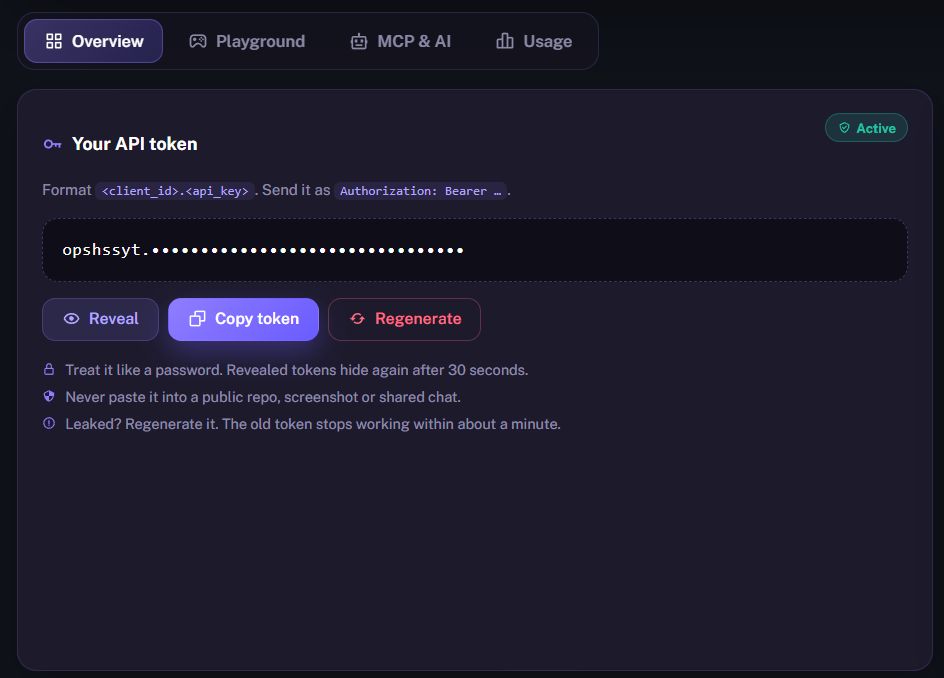
The format is client_id.api_key. Copy both parts, including the dot. Your TradingView username and email verification code are separate account details.
Authorization: Bearer YOUR_CLIENT_ID.YOUR_API_KEYUse Regenerate in Overview, then replace the saved credential in every script and MCP client that used the old token. Regeneration affects those connections. Never include a working token in a public repository, shared chat, screenshot, or support report.
Explore a request in Playground
You can inspect the available endpoints and their inputs before writing code. Start with Discovery → Symbols, which helps you find the instrument names accepted by the API.
- DiscoverChoose an endpointSearch the list or select Symbols. Read the route description and required fields.Start with
Symbols - ConfigureSet the inputsUse Form or JSON. For a small discovery check, add SPX and AAPL to symbols.Example inputs
["SPX", "AAPL"] - InspectRead the responseUse Send for a real request. Inspect Pretty, Table, or Headers as appropriate.Look for
data + meta
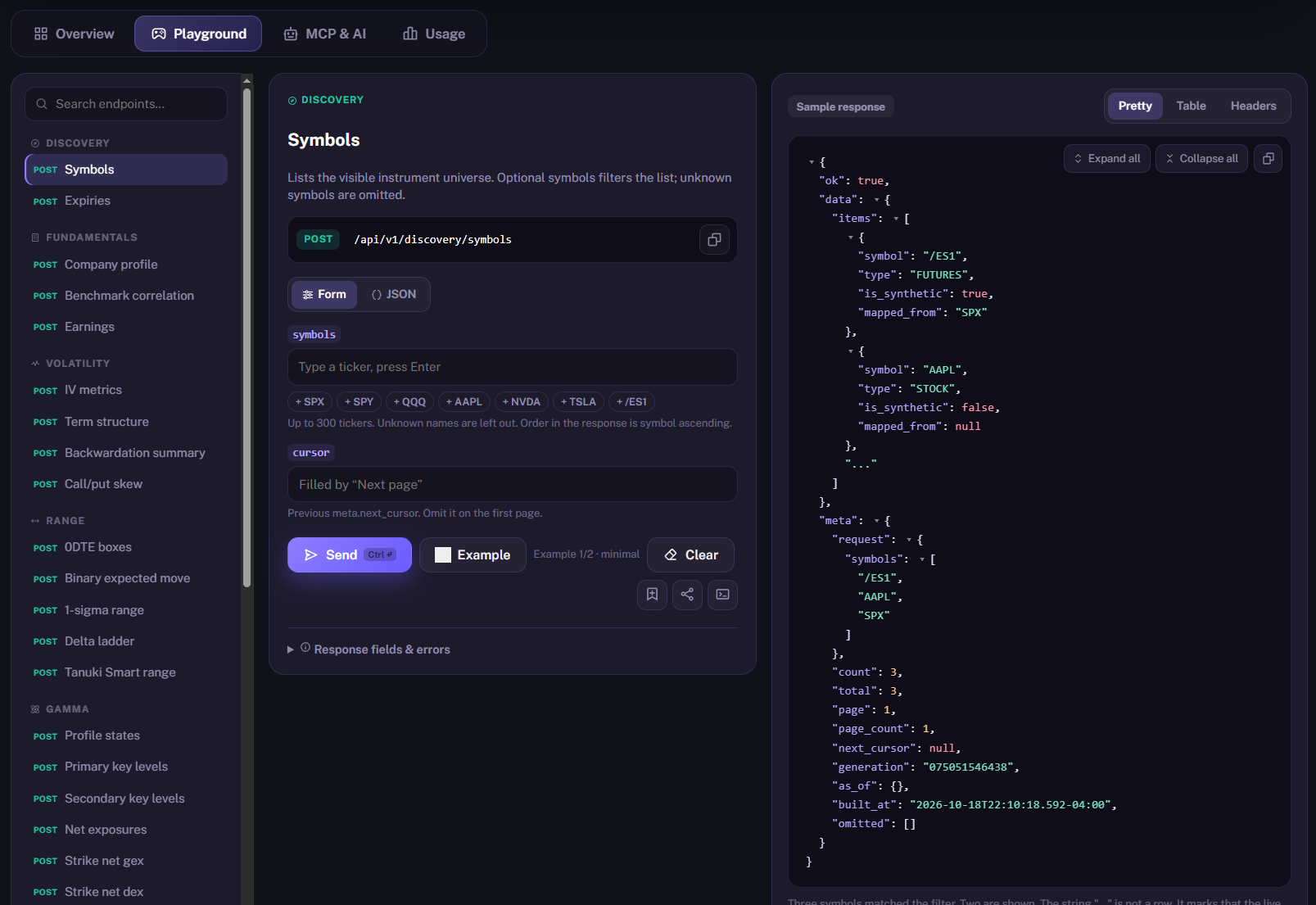
Check the response status and returned data before building on it. The Response fields & errors section explains the selected endpoint. For exact request and response fields, continue with Discovery documentation or the REST API guide.
Use the same token with an MCP client
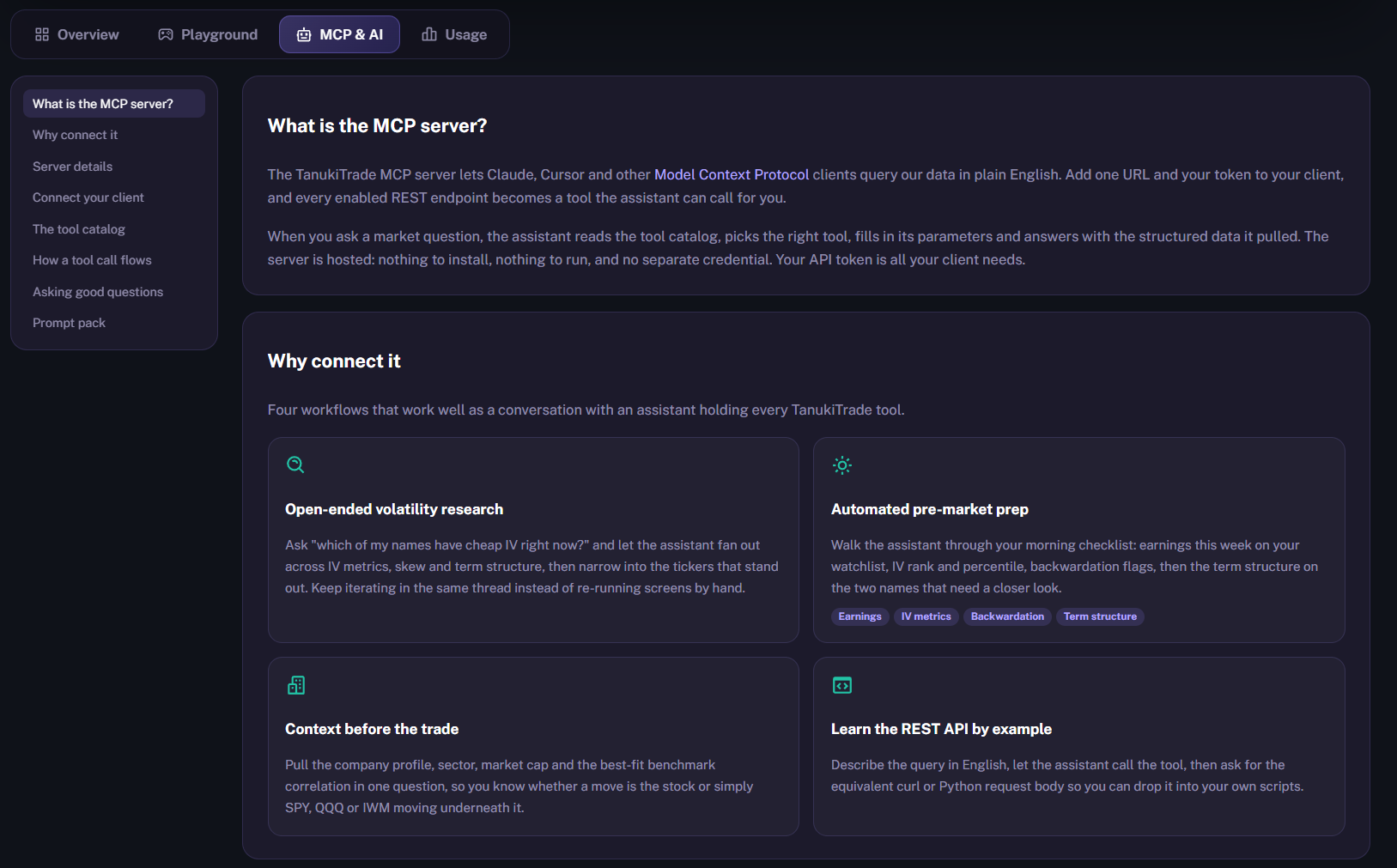
Open MCP & AI for the hosted server details, supported connection methods, tool catalog, and prompt examples. Your assistant needs a client that can connect to the server with the required authorization header. Follow the instructions for that client; some setups use a bridge.
Connect and verify
- Choose your client. In Connect your client, open its instructions and check the compatibility notes shown in your account.
- Add the connection. Use the server URL and configuration provided there. The authorization value is
Bearerfollowed by the complete token. Put the credential in the connection settings, not in the conversation or tool arguments. - Load the tools. Restart or refresh the client as its instructions require, then verify that the TanukiTrade tool list is available.
- Try a small discovery question. Ask the assistant to list SPX and AAPL with TanukiTrade, then confirm that it actually called a tool and received a result.
https://mcp.tanukitrade.com/mcp/v1REST uses a separate host: https://api.tanukitrade.com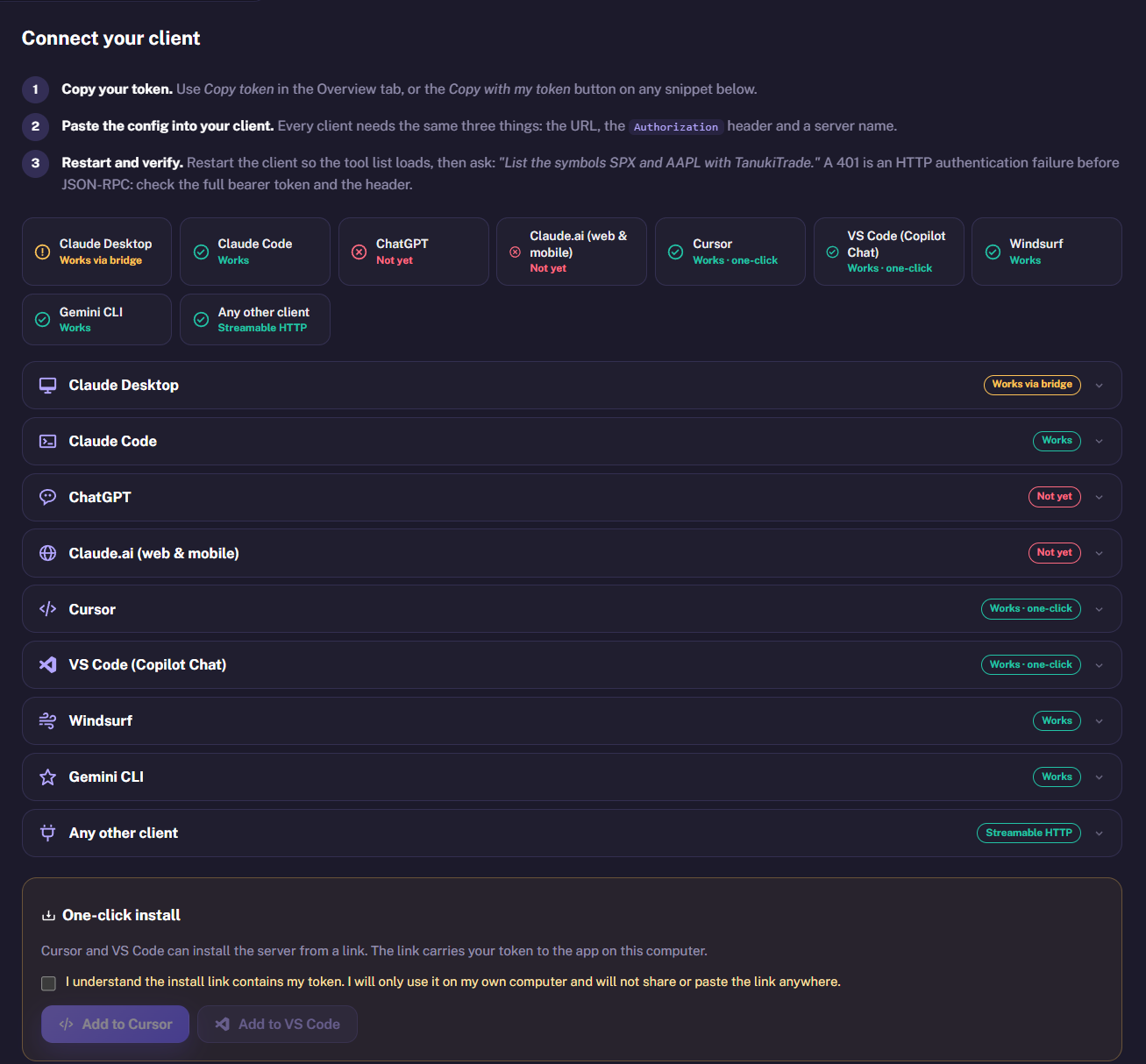
The full configurations and client-specific steps are in MCP connection instructions. After discovery works, try a focused research question such as:
For SPX, find the next available expiration and report its gamma profile state and primary levels. State the expiration, aggregation mode, and source timestamps. Explain any missing data.
An assistant’s explanation should stay grounded in the tool results. If the symbol, expiration, method, or data time is missing, ask for that context before comparing it with a chart.
Review usage and resolve access errors
Open Usage in API Access to review activity while investigating unexpected calls or connection problems. REST and MCP share the account’s request budget. For response headers and retry timing, use Rate limits and headers; for programmatic account activity, see Account usage.
| What you see | What to check |
|---|---|
| 401 — authentication | Copy the full token again and check the Authorization header. Confirm that the client is not still using an older, regenerated credential. |
| 403 — access | Read the returned error code. Check subscription and token access; contact private support if the account needs review. |
| 429 — rate limit | Wait for the supplied Retry-After interval. Avoid repeated retries from multiple clients. |
| No MCP tools appear | Check the server URL, client compatibility, and connection configuration. Refresh the tool list after fixing the connection. |
If the issue continues, send the endpoint or MCP tool name, HTTP status, error code, request ID if present, and request time. Remove the token and authorization header. Continue with API troubleshooting or private support.
TanukiTrade documentation. Levels are context, not a recommendation. tanukitrade.com