
Getting Started · Step 1
Create your account and sign in.
There is no password. Enter your email and TradingView username. TanukiTrade then emails you a 6-digit code.
What you need
- An email you can open now. Your login code goes there.
- A TradingView account. The free TradingView plan is enough. Use the slug in
tradingview.com/u/YOUR_USERNAME/. Do not use your display name. - A payment card for checkout. Checkout saves the card. Nothing is charged during the 7-day trial.
Steps
- Open the Member Area sign-in. If you do not have an account, use Start 7-day trial under the Sign In button.
- Choose a plan on the pricing page. Monthly, quarterly, and annual include the same toolkit. Only the billing period changes.
- Enter your email and TradingView username. Use the slug from your TradingView profile URL. Invite-only script access is tied to that slug.
- Accept personal use, the terms, the risk disclaimer, the community guidelines, and the privacy policy. A second trial with another email or another TradingView username is blocked.
- Finish checkout. Checkout saves your card. Nothing is charged during the 7-day trial. The invite-only script request is sent when checkout succeeds. Access usually arrives within a couple of minutes.
- Return to the Member Area sign-in. Enter the email and TradingView username on your account. Capital letters do not matter on this form. A typo in the username prevents the code from being sent.
- Enter the 6-digit code from the email. The code is valid for 2 minutes. Request a new code if it expires. A successful sign-in uses that code once.
What you should see
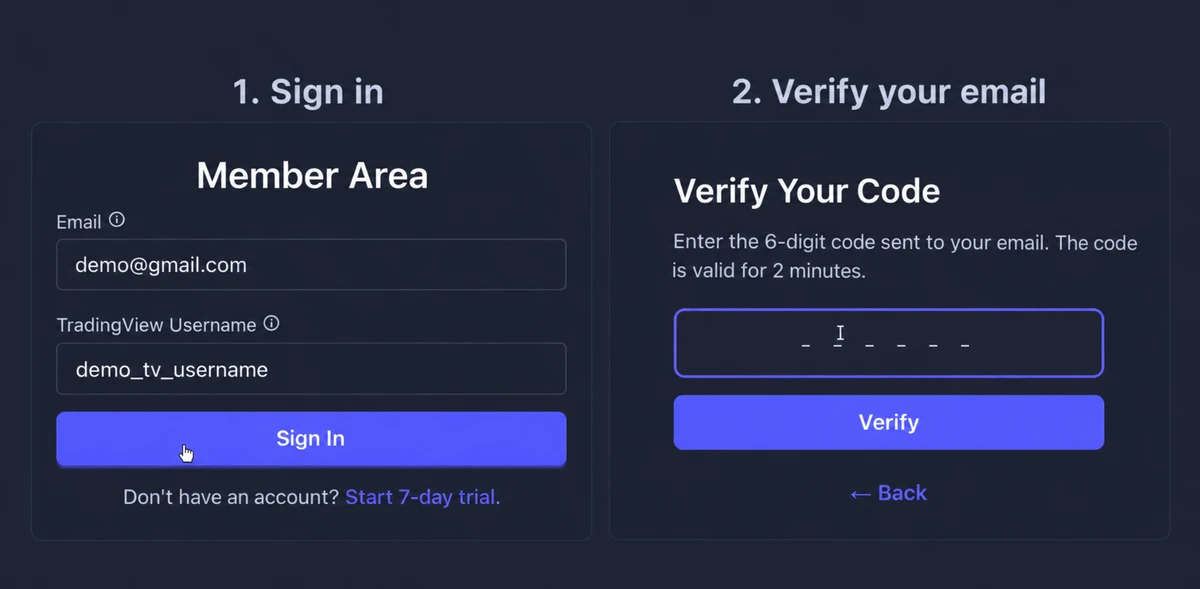
Login worked when the Member Area opens and shows your plan. Invite-only script access may still be catching up. If you want to use TradingView indicators, continue with Step 2. For the live WebApp tools, continue to Step 3.
If something goes wrong
- No email. Check spam and Gmail Promotions. Allow
noreply@tanukitrade.com. Confirm the TradingView username. Then request a new code. About ten attempts in one minute pause the form for one minute. - The code is rejected. It expires after 2 minutes. Request a new code. Enter digits only. TanukiTrade never asks you to paste the code into chat or Discord.
- "No matching TradingView username." Use the slug from your profile URL. Do not use your display name. To fix a stored username, contact chat.tanukitrade.com. You cannot edit it yourself. Use the same webchat to change your login email.
- The site asks you to sign in again. Your session ends if your IP address changes. This is common on a VPN or cellular connection. Sign in again on that network. Another device keeps its own session. See troubleshooting.
TanukiTrade documentation. Levels are context, not a recommendation. tanukitrade.com