
Getting Started · Step 2
Add the TradingView indicators.
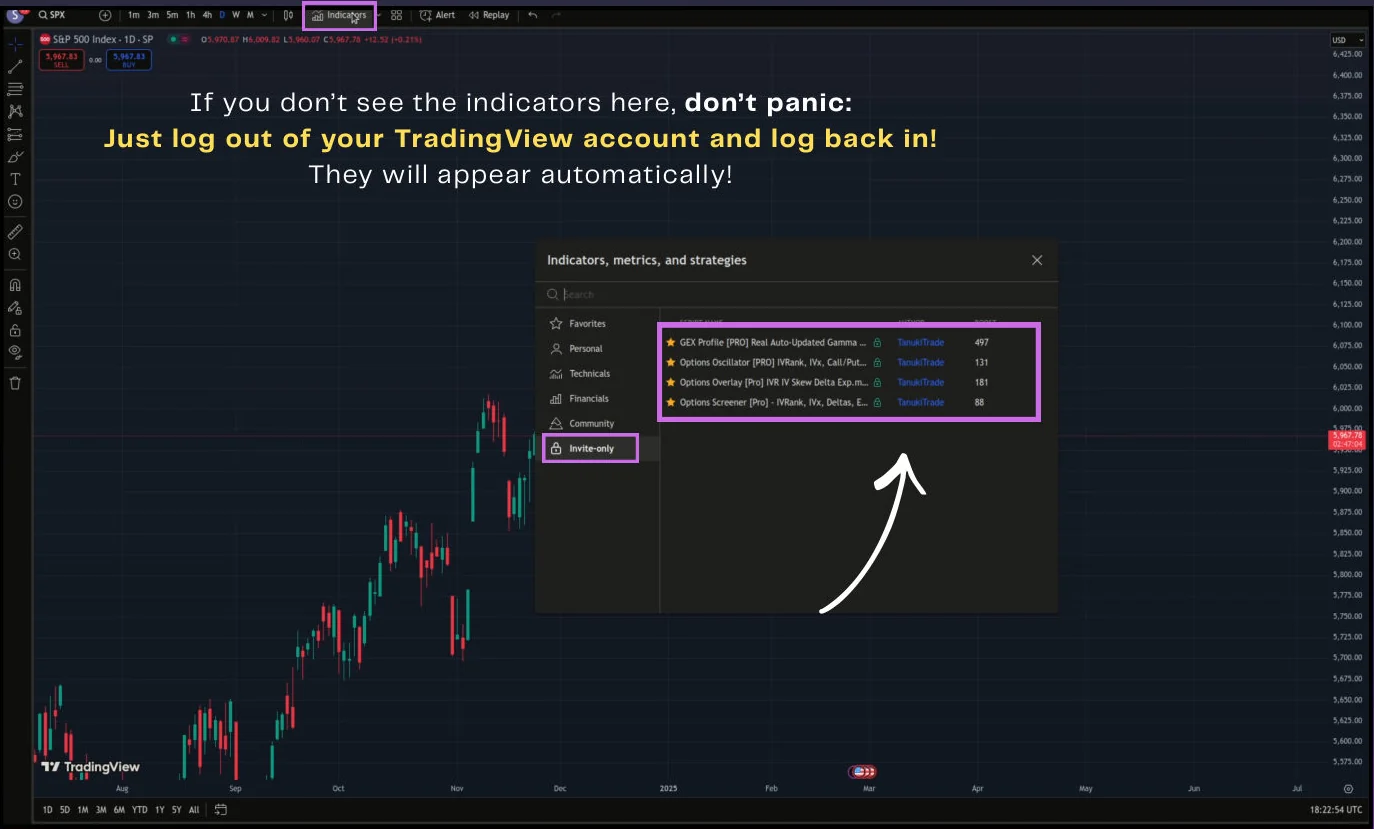
Your PRO indicators are available through TradingView's Invite-only tab once access has been granted to the username on your TanukiTrade account. Select an indicator to add it to your chart.
You can use the indicators with a free TradingView account. The number of indicators you can add to one chart depends on your TradingView plan.
What you need
- An active TanukiTrade trial or subscription, linked to your TradingView username.
- The TradingView account whose username matches the one on your TanukiTrade account. You can find the username in your TradingView profile URL.
- A chart for a supported symbol, such as SPX, SPY, or QQQ.
Steps
- Open Indicators on the TradingView chart toolbar and select Invite-only to find the TanukiTrade indicators you have access to.
- Select an indicator to add it to your chart. The table below explains what each indicator displays. You do not need to add all six at once.
- Select the star next to an indicator to save it to Favorites.
- If you added GEX Profile PRO, choose an expiry scope. Its Gamma profile to expiry setting offers First for the nearest available expiration, First Monthly and Optimal Monthly for monthly expiry views, and Every Expiry for a combined view across available expirations. See Choose your path for an overview. Each indicator has its own settings; see the individual indicator guides for details.
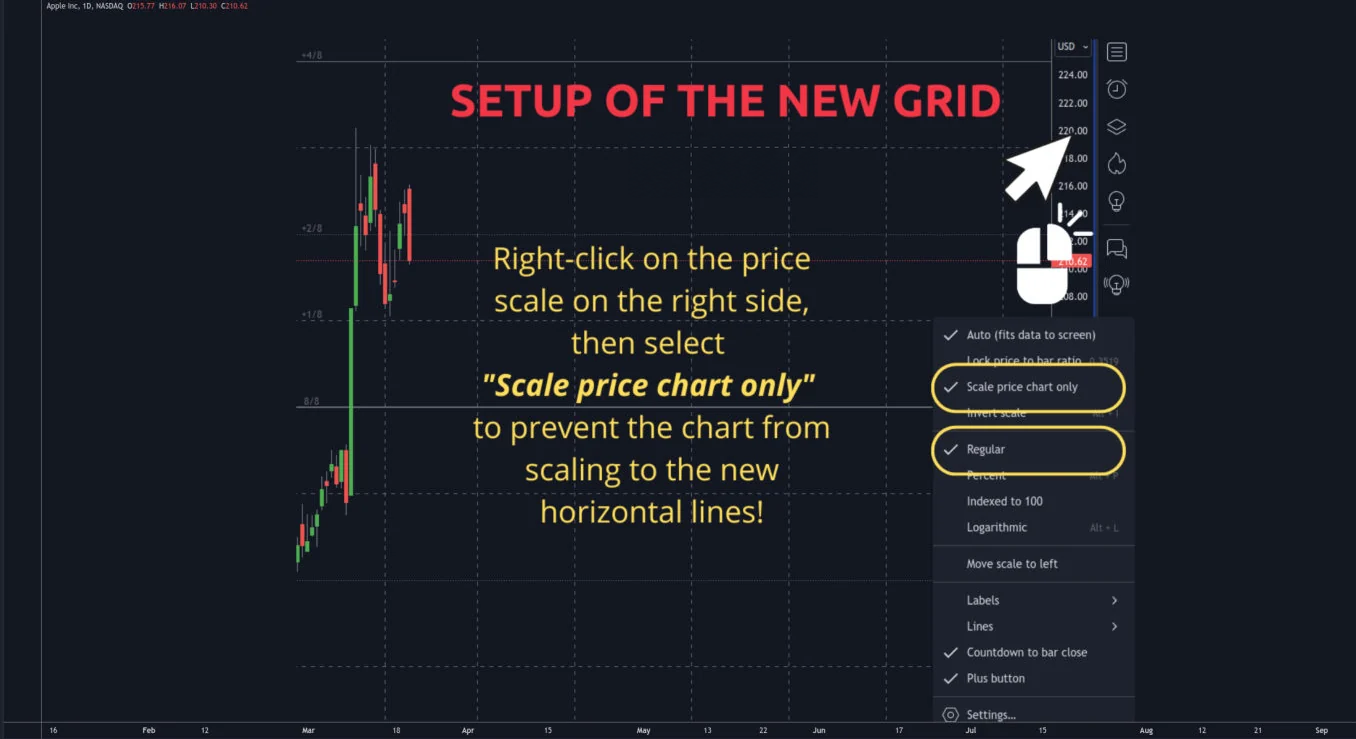
- Right-click the price scale and enable Scale price chart only. This keeps distant indicator levels from compressing the price candles.
- Optional: copy a chart layout. See Chart layouts for Swing and Day-trading templates in dark and light themes. Your TradingView plan's indicator limits still apply.
The six PRO indicators
For settings and feature details, open the guide for each indicator.
| Indicator guide | What it displays | TradingView |
|---|---|---|
| GEX Profile PRO | HVL, gamma walls, and the gamma profile on the price chart. | Open script |
| Options Overlay PRO | IV rank, an expiry table, delta curves, and the Murrey grid. | Open script |
| Options Oscillator PRO | IV rank, IVx, and call/put skew in a separate pane. | Open script |
| Options Screener PRO | A compact table of options analytics for multiple symbols. | Open script |
| 0DTE EM Box PRO | The options-implied expected-move range for same-day expirations. | Open script |
| GEX History PRO | Changes in the gamma state across expirations over time. | Open script |
You can also find the published indicators on the TanukiTrade TradingView profile. Check the TradingView watchlist for supported symbols. PRO also supports mapped futures, such as /ES from SPX and /NQ from QQQ.
How the data updates
WebApp analytics refresh every minute during the weekday update window, 6:40 AM to 4:00 PM ET. Spot prices stream in real time while the live price feed is available. The analytics refresh and the spot price stream are separate.
Outside analytics update hours, the WebApp keeps the latest saved analytics and shows that updates are paused.
TradingView indicators receive about five scheduled updates per U.S. trading day. They do not update on every bar. Approximate delivery windows:
- ~6:40–6:50 AM ET, premarket
- ~9:40–9:50 AM ET, after the open
- ~12:40–12:50 PM ET
- ~2:40–2:50 PM ET
- ~3:40–3:50 PM ET, before the close
For the latest analytics between scheduled TradingView updates, use the WebApp. To copy those levels into your TradingView indicator, use Manual Override.
What you should see
The Invite-only tab lists the indicators your TradingView account can access. The tab appears once your account has access to at least one invite-only indicator. If it is missing or the TanukiTrade indicators are not listed, follow the checks below.
Optional chart layouts
If you want a ready-made starting chart, open Chart layouts to compare the Swing and Day-trading templates (in dark and light themes) and see which indicators each layout includes.
The screenshot below shows Scale price chart only enabled. Regular is the scale type shown in this example.
If something goes wrong
- Invite-only is missing or the list is empty. Confirm that your TradingView username matches the one on your TanukiTrade account. Allow up to 15 minutes after checkout for access to appear, then sign out of TradingView and sign back in. If the indicators are still missing, follow the indicator access checklist.
- An indicator reports an access error. Check that you are signed in with the correct TradingView username and that your TanukiTrade trial or subscription is active. See the indicator access checklist for further checks.
- The candles appear compressed. Enable Scale price chart only on the price scale.
- Some PRO indicators are missing. Clear any search filter and scroll through the Invite-only list. PRO includes all six indicators listed above. If any are still missing, follow the indicator access checklist.
TanukiTrade documentation. Levels are context, not a recommendation. tanukitrade.com