
Discord
GEX bots
Request a GEX profile, compare expirations in a matrix, or export levels from the Discord command channel. Each reply is a snapshot: read its symbol, expiration scope, and data timestamp.
You need the Premium role and access to GEX-BOT-pro, also shown as options-gex-bot in some server views. Use the command channel rather than a direct message. If it is missing, start with Access and roles.
Run your first lookup
- Choose the commandType /gex, wait for autocomplete, and select /gex0.
- Fill in the symbolEnter a supported symbol, such as AAPL, in the field Discord presents.
- Read the replyCheck the expiration date, DTE, scope, and snapshot time before interpreting the profile.

/gex0 selects expiry role 0 in Standalone mode: the first available expiration. Read the actual date and DTE. A symbol without a same-day expiration can still have a first available expiration.
Command reference
The examples summarize the command and selections. Discord presents command options as separate fields; use its autocomplete for the available choices. For supported futures, retain the leading slash in the symbol, such as /ES.
| Example | Purpose |
|---|---|
/gex SPX | A GEX profile using the command’s default selection. Confirm the scope in the reply. |
/gex0 SPX | First available expiration, Standalone mode. Check DTE rather than assuming it is today. |
/gexw1 SPX | The first weekly expiration role. |
/gexparam SPX W2 standalone | Choose the expiration role and aggregation mode explicitly. Use the fields offered by the command. |
/matrix SPX | A multi-expiration table with volatility and exposure comparisons. |
/levels SPX | A levels text export for that symbol. An expiration key selects that role across supported symbols; ALL requests the full dataset. |
/symbols | List the supported symbols. |
/help | Read the bot’s command reference. |
Read a profile reply
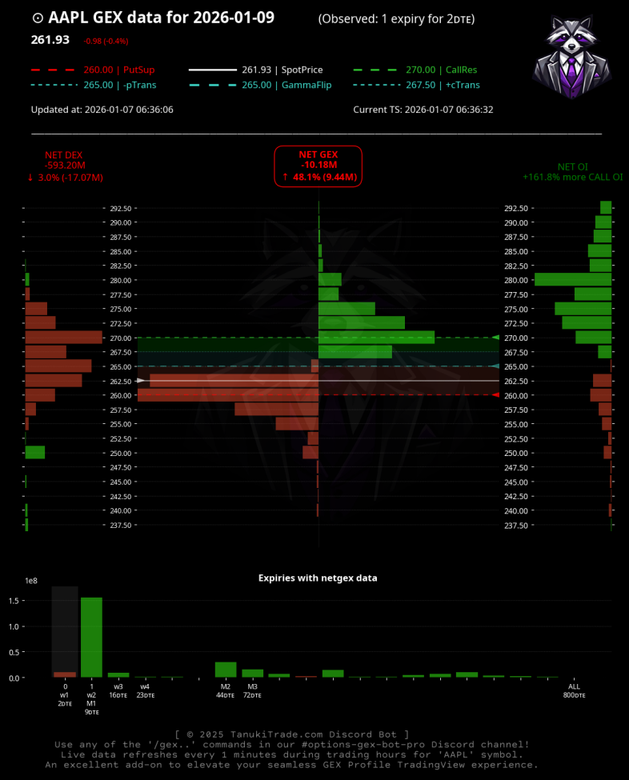
- Header: verify symbol, expiry date, DTE, underlying reference price, and data time.
- Distributions: compare the metric columns and locate the labeled wall and transition levels. Green and red indicate positive and negative values in the signed distributions.
- Expiration overview: use the lower panel to compare exposure across available dates.
For interpretation, continue with GEX, delta exposure, and confluence.
Compare expirations with /matrix

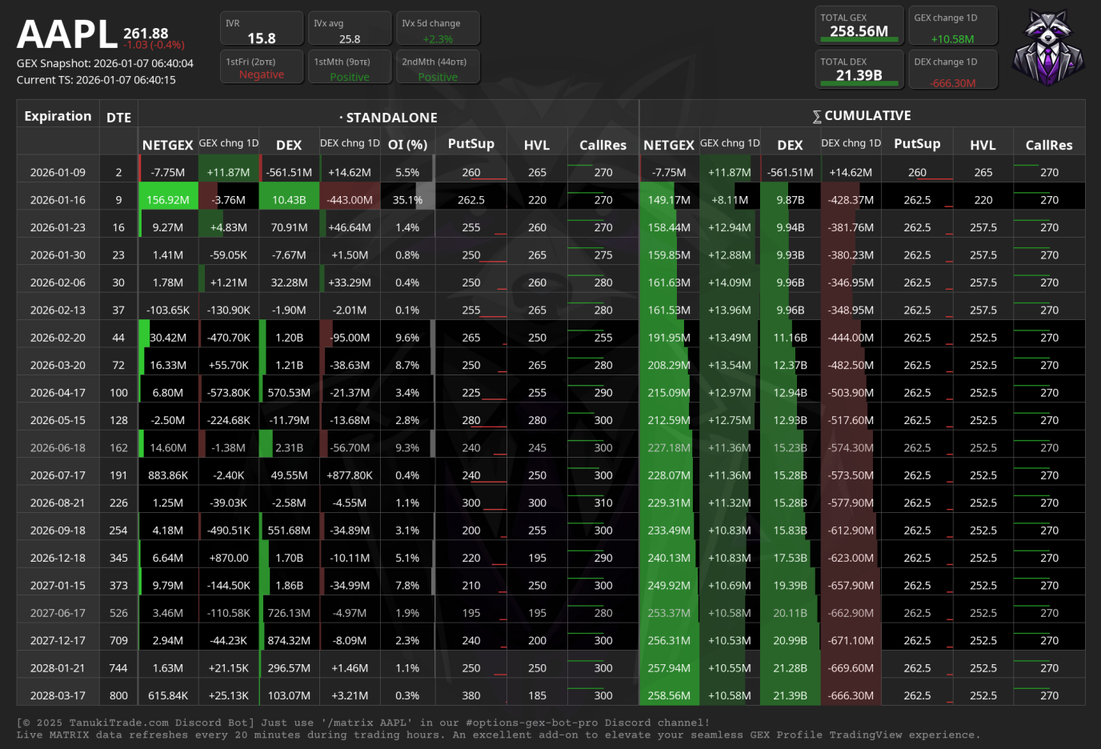
Compare a row’s Net GEX and DEX across the two scopes, and read day-over-day changes separately from the current sign. OI share appears in the standalone block. P1, HVL, and C1 are levels derived from each profile; their prices are not added together.
For a later cumulative date, today is excluded and the selected date is included. Selecting today itself covers today only. See the aggregation rules and the WebApp Matrix guide.
On-demand replies and the SPX feed
Slash-command replies
A request returns the available snapshot for the selected symbol and scope. Check the data timestamp; sending a new command does not necessarily trigger a new calculation.
SPX 0DTE feed
spx-0dte-feed publishes every minute from 6:40 AM to 4:00 PM ET on weekdays. The end-of-day video recap appears in spx-0dte-recap-videos.
These examples are historical snapshots. A message time or “Current TS” is not a substitute for the data snapshot time. Compare matching symbols and scopes when checking another tool.
Use a levels export in TradingView
Open the text file returned by /levels, copy its content, and paste it into GEX Profile PRO → Settings → Inputs → Manual Override. Match the symbol, expiration, and aggregation mode. A paste supplies a snapshot, not a streaming connection. Follow Manual Override or Copy levels to TradingView for the complete workflow.
If a request does not work
- Confirm the bot channel and Premium role.
- Select the command from autocomplete and complete its required fields.
- Use
/symbolsfor an unsupported instrument or/helpfor command options. - If rate-limited, wait for the interval stated by the bot before trying again.
- If the issue continues, report the command, symbol, and response in
tech-support. Avoid repeated requests while the bot is unavailable.
TanukiTrade documentation. Levels are context, not a recommendation. tanukitrade.com