
WebApp
Copy levels to TradingView
Copy an options-level snapshot from the WebApp and paste it into GEX Profile PRO on TradingView. Use this workflow when you want a newer compatible snapshot on your chart between scheduled indicator updates.
Already familiar with the tools? Open GEX Live Table or GEX Live Chart on desktop, use Copy Levels, and choose the data scope. Paste the copied text into GEX Profile PRO → Settings → Inputs → Manual Override, select OK, then hover over the HVL label to check the active snapshot.
When to copy a snapshot
TradingView PRO indicators receive about five scheduled updates on a weekday. WebApp options analytics refresh about once a minute from 6:40 AM to 4:00 PM ET on weekdays. See the TradingView update schedule for the delivery windows.
Spot prices stream separately in real time while the live feed is available. Copy Levels transfers a saved options-analytics snapshot; it does not create a continuous connection between the WebApp and TradingView. Copy and paste again when you want to supply a newer snapshot.
Find Copy Levels in the WebApp
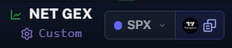
Copy Levels is available on desktop. In the Table, look beside the Net GEX header. In the Chart, look beside Replay / GEX History. In both excerpts below, the copy control is the overlapping-pages icon to the right of the TradingView shortcut.

Choose which data to copy
Choose the scope that includes the symbol and expiration view you want to use in TradingView:
| Scope | When to choose it |
|---|---|
| All expirations for the selected symbol | Use this when you want to switch between expiration views for one symbol. For example, copy the SPX dataset, then choose the intended expiration in GEX Profile PRO. |
| One expiration key across symbols | Use a key such as 0, W1, M1, or ALL when you want the corresponding view across symbols. For example, 0 selects the same-day expiration scope. |
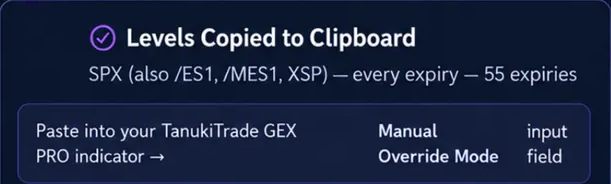
Check the copy confirmation before leaving the WebApp. It identifies the copied symbol or expiration scope.
Paste into GEX Profile PRO
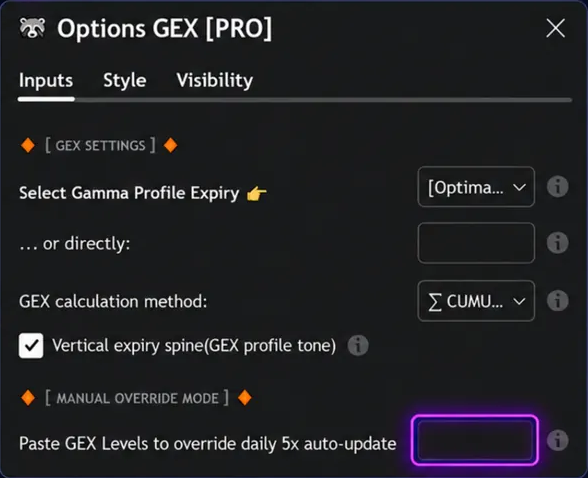
- In TradingView, open GEX Profile PRO → Settings → Inputs.
- Keep the intended expiration and calculation method selected. The pasted data must match the symbol, expiration, and calculation type used by the indicator.
- Paste the copied text into the Manual Override input and select OK.
Check which snapshot is active
- Hover over
HVL. Read the snapshot timestamp, expiration scope, and source note to confirm which data the chart is using. - Compare matching views. Check the symbol, expiration, and cumulative or standalone calculation before comparing levels between the WebApp and TradingView.
- Check freshness. GEX Profile PRO uses the newer matching snapshot. A later scheduled update can replace the pasted data automatically.
If the paste does not become active, use the HVL status icon to check whether it is outdated or does not match the selected view. See Manual Override for the icon meanings, mapped symbols, and troubleshooting. To clear a paste manually, empty the Manual Override field.
For explanations of individual levels, see GEX Live Table and GEX Live Chart. Levels provide context, not buy or sell signals.
Watch the copy-and-paste walkthrough
Follow the workflow from copying WebApp levels to pasting them into GEX Profile PRO.
TanukiTrade documentation. Levels are context, not a recommendation. tanukitrade.com