
WebApp
Expected Move Box
Display the options-implied range for today's expiration alongside price candles or the strike table. Compare snapshots anchored to the previous close, premarket price, and cash open to see how the session range differs between those reference points.
Select today's expiration in GEX Live Chart or GEX Live Table, press Ctrl+M, and open Static Expected Move Box · 0DTE only. Enable the snapshots you want to compare. Chart and Table share the same switches.
Read the session range on the chart
On the chart, the Expected Move Box draws today's 0DTE session band and outer 1σ envelope from the selected snapshot's anchor price through the 4:00 PM ET close.
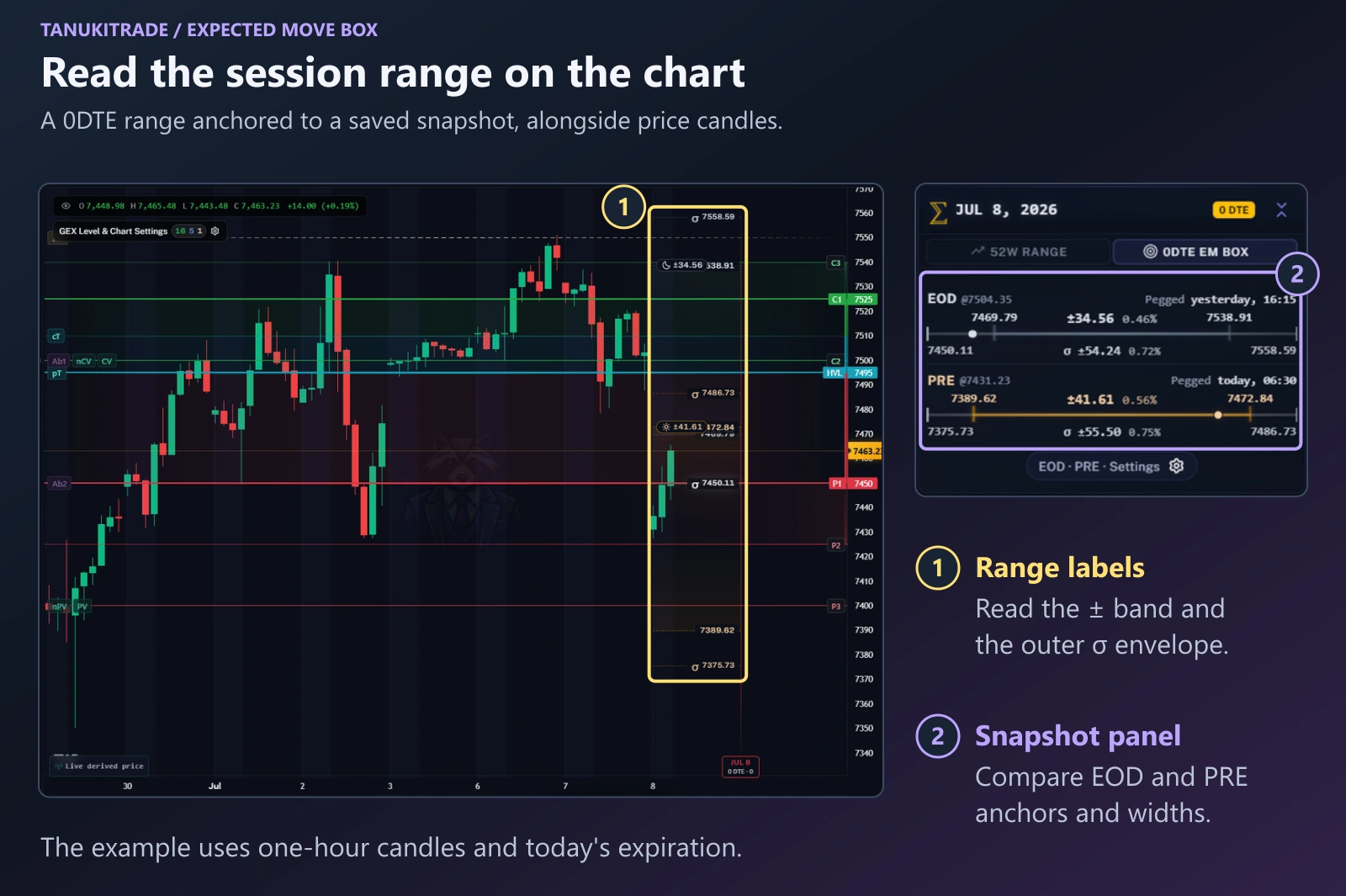
Start with the expiration: the session box describes 0DTE, the expiration for the current session. Then check which snapshot is displayed.
The ± value is the expected-move distance from that snapshot's anchor price. The band extends above and below the anchor through the projected 4:00 PM ET session close. A thinner σ envelope shows a separate, wider range outside the main band.
Use the ± labels and the snapshot panel to identify the expected-move boundaries. Colored GEX levels such as C1, P1, and HVL are separate references on the same chart.
The expected move describes a range implied by options pricing. Its boundaries are not price targets or buy or sell signals, and price can move outside the range.
Compare the three snapshots
Three static snapshots capture how the 0DTE options-implied range is priced at the prior close, in premarket, and at the 9:30 AM ET cash open.
| Snapshot | Anchor | When it is calculated |
|---|---|---|
| EOD | Previous session's closing price. | After the cash close, around 4:15 PM ET. |
| PRE | The 6:30 AM ET premarket spot price. | At 6:30 AM ET. |
| OPEN | The 9:30 AM ET cash-open price. | At the cash open. Once available, the settings panel marks it locked for the session. |
Each snapshot has its own anchor and range width. Compare both when reading EOD, PRE, and OPEN; a change in the upper or lower boundary can reflect a different reference price as well as a different width.
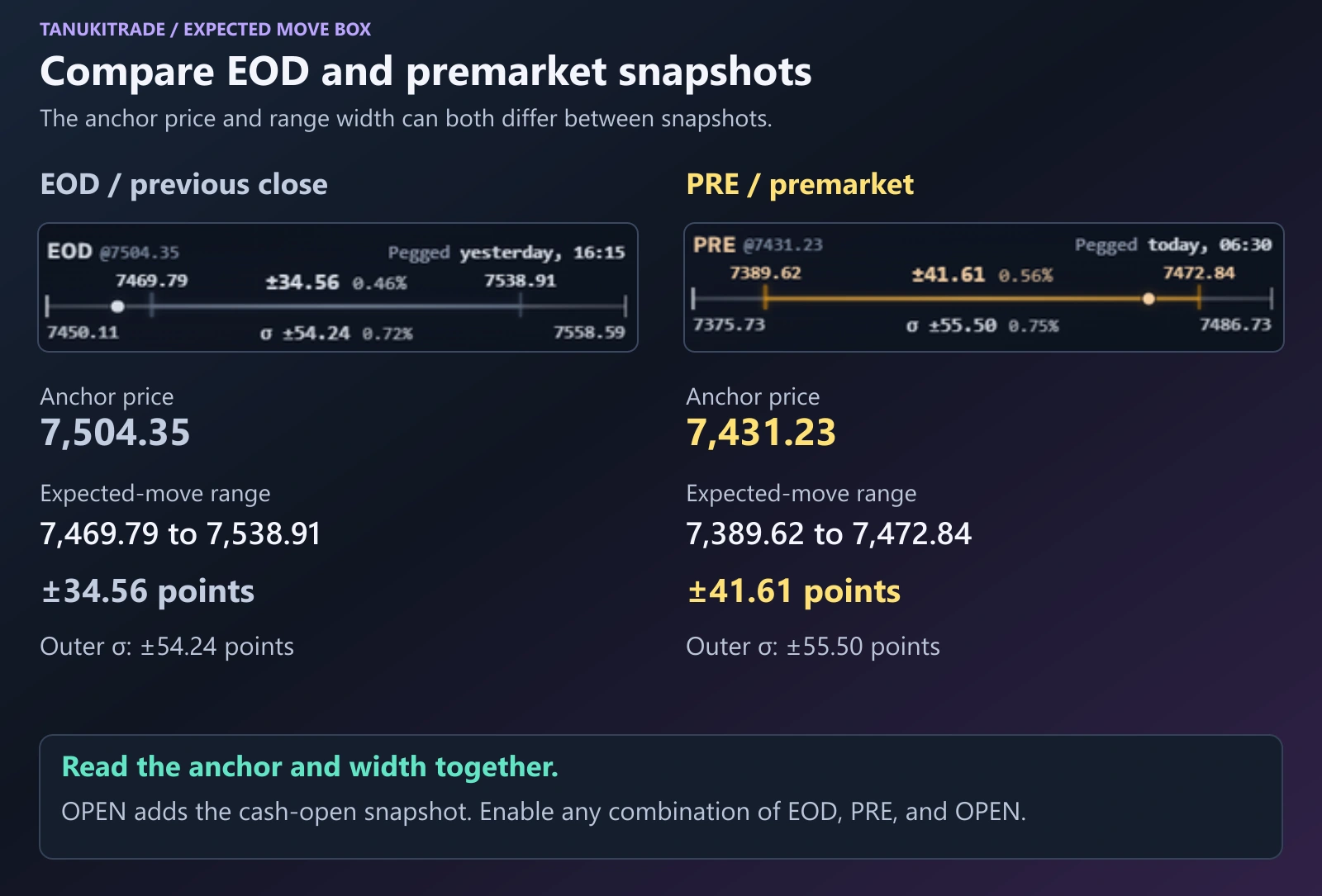
In this example, the EOD band runs from 7,469.79 to 7,538.91. The PRE band runs from 7,389.62 to 7,472.84. PRE has a lower anchor and a wider expected-move distance than EOD.
The outer σ distances are shown separately: ±54.24 points for EOD and ±55.50 points for PRE. Keep those values separate from the main expected-move widths.
Select a snapshot chip to open the phase comparison, including how the range changed from EOD to PRE to OPEN and the overnight gap relative to the previous session's band.
Choose how the ranges are displayed
Under Static Expected Move Box · 0DTE only, use the DISPLAY toggle to choose whether enabled snapshots are combined into one outer envelope (Merged Widest) or plotted as individual calculation levels (Separate).
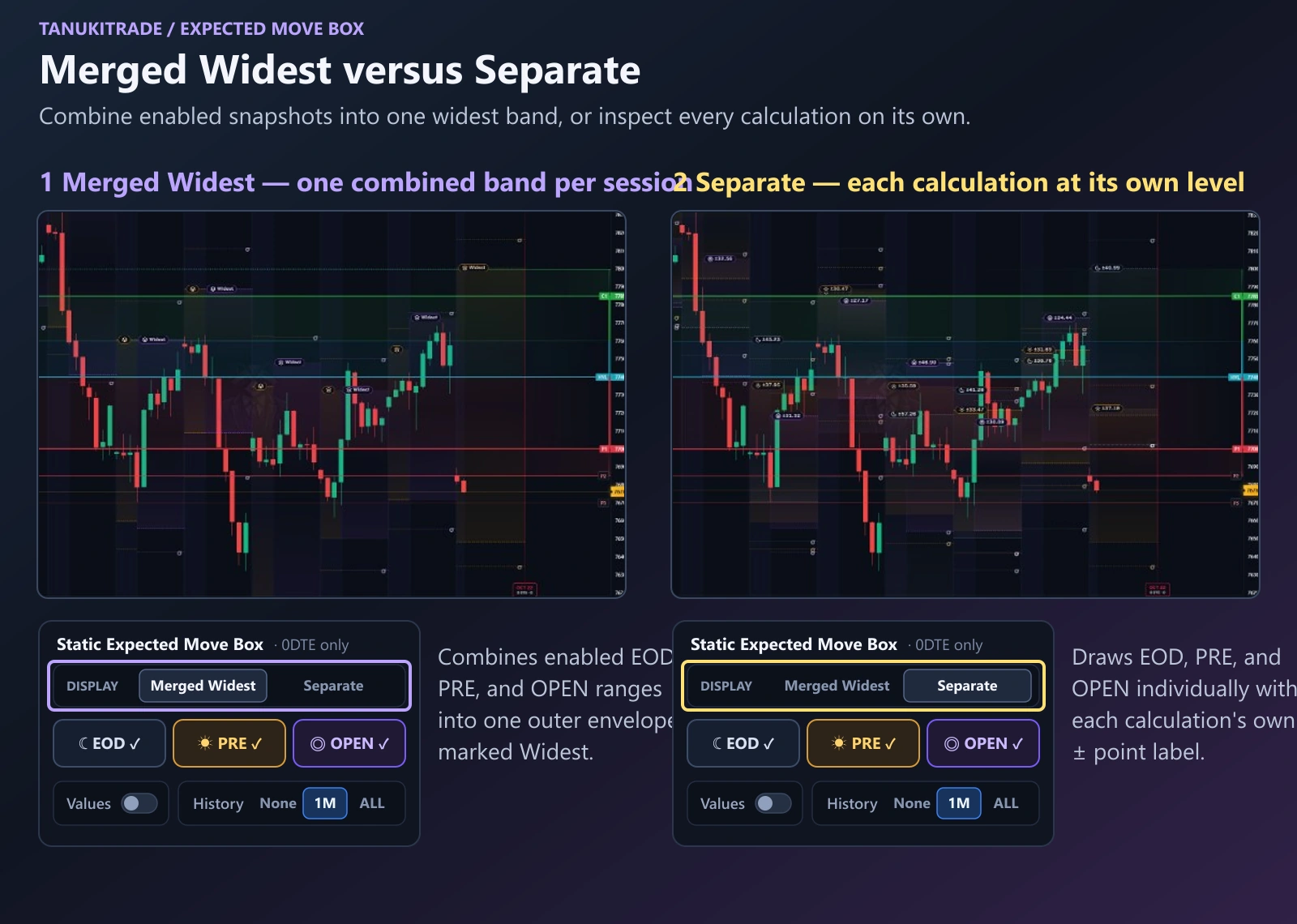
- Merged Widest combines the enabled snapshots into a single session band using the widest upper and lower boundaries, marked with
Widestpills on the chart. - Separate keeps every enabled snapshot (EOD, PRE, OPEN) visible on its own so you can see each calculation's exact boundary and ± point label separately.
- Values shows or hides the point and percent labels on the chart. The table uses its own compact labels.
The snapshot colors help distinguish the phases: EOD uses slate, PRE uses amber, and OPEN uses violet. Read the phase icon and label alongside the color.
The purple forward cone belongs to Tanuki Smart EM Range, a separate multi-expiry feature covered in Adaptive Expected Move. The Static Expected Move Box covers the 0DTE session; Adaptive Expected Move projects ranges across future expirations.
Review past session ranges
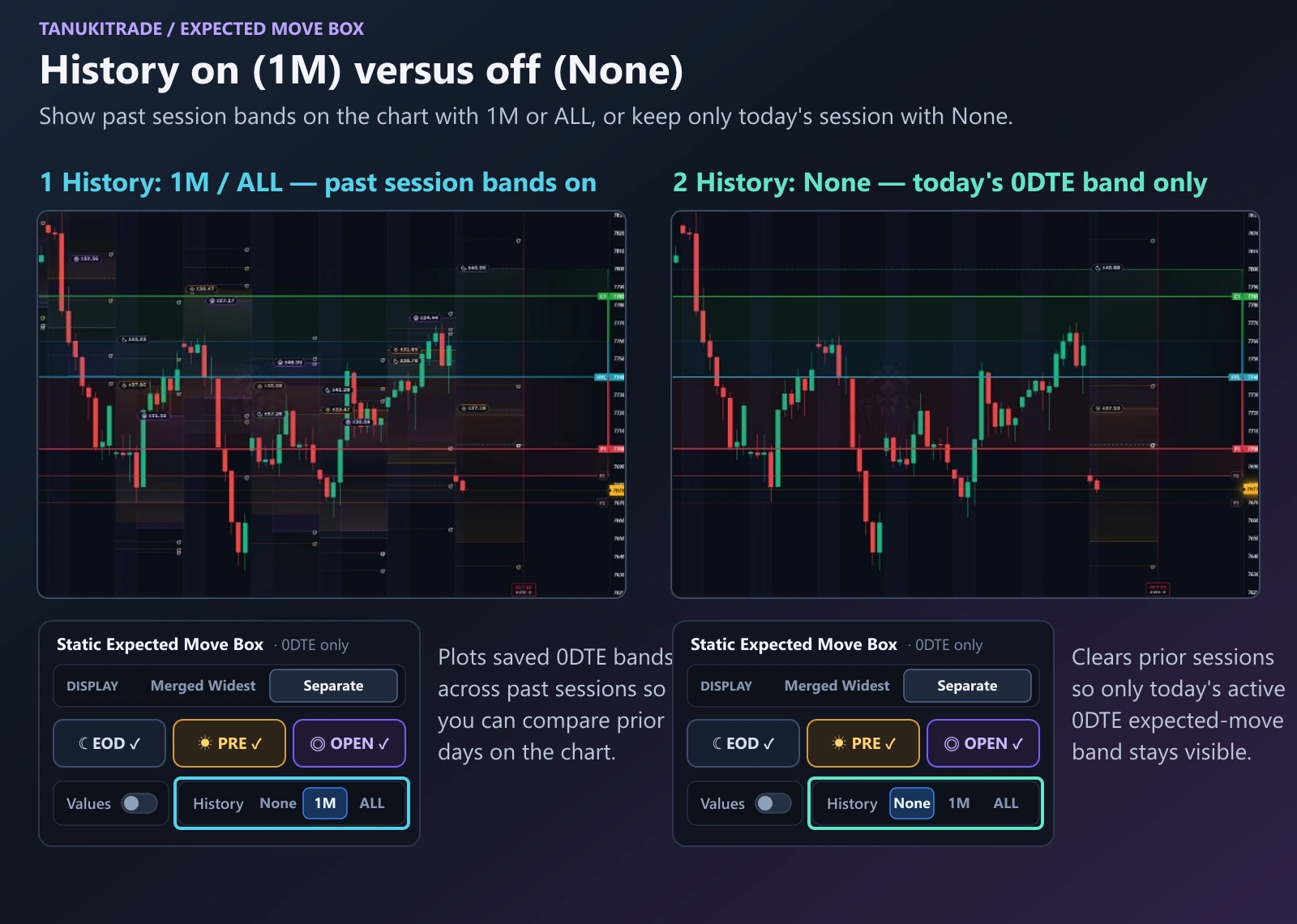
Use the History selector in Static Expected Move Box settings to overlay saved 0DTE bands across past sessions or clear them so only today's session range stays on screen.
| History option | What it shows |
|---|---|
| None | Hides historical bands on the chart so only today's 0DTE session range is displayed. |
| 1M | Displays about the last month (~22 trading days) of saved 0DTE bands on the chart. |
| ALL | Displays all available saved 0DTE session bands across the loaded chart history. |
Compare each session's candles with that session's saved band to see whether price stayed inside the expected move, tested a boundary, or extended beyond it. For stepping through saved intraday gamma profiles, see GEX History/Replay.
Read the range in Table view
In GEX Live Table, the 0DTE expected-move boundaries appear as compact range markers along the strike grid so you can compare the session range directly with strike-level gamma and delta exposure.
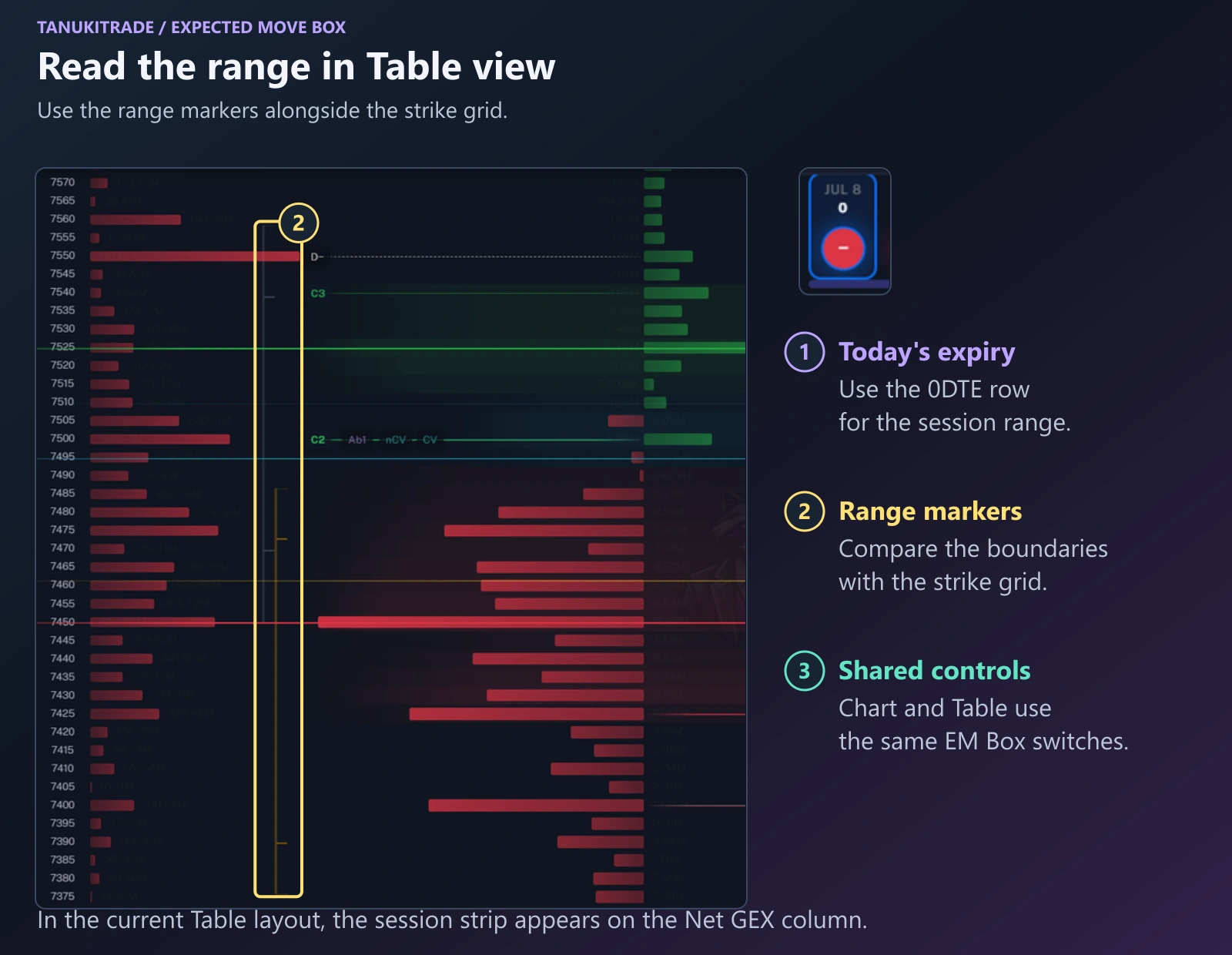
Select today's expiration to display the session range in the table. In the current layout, the strip appears on the Net GEX column. Read the range boundaries alongside the strike rows, then compare them with the displayed exposure and GEX levels.
The chart and table use the same Expected Move Box snapshot switches. Their labels and presentation differ: the chart plots bands across the session, while the table places compact range markers alongside the strike grid.
If the table range is missing
First check that today's expiration (0DTE) is selected and that at least one snapshot chip (EOD, PRE, or OPEN) is enabled. The session strip is not shown on later expirations, and the settings drawer notes when a non-0DTE expiry is active.
Before the 6:30 AM ET premarket calculation exists—or if today's snapshot is not yet available—enabling History allows the table to fall back to the newest saved session's range (labeled LAST). Read a LAST strip as the prior saved session's range rather than today's calculation.
Keep the snapshot and live price separate
Each Expected Move Box band stays locked to its snapshot's anchor price and timestamp, even while spot price continues to stream in real time.
WebApp options analytics refresh about once a minute from 6:40 AM to 4:00 PM ET on weekdays. A changing spot price does not recalculate an earlier EOD, PRE, or OPEN band around the new price. See Data clocks and model limits.
For the underlying concept, see Expected move. For the related TradingView indicator, see 0DTE EM Box PRO.
TanukiTrade documentation. Levels are context, not a recommendation. tanukitrade.com