
WebApp
GEX Live Table
Explore options analytics by strike for the selected symbol and expiration view. Use the column dropdowns, zone colors, and level controls to focus the table on the information you want to compare.
The table is the strike-by-strike view. Use it when you want numbers. Use GEX Live Chart when you want price sitting on those numbers. Open the table from the sidebar, or open GEX Live Table from your signed-in WebApp session.
Find your way around the table
Start by confirming the active symbol and expiration at the top, then read the strike grid and open the settings drawer when you want to adjust zones, secondary levels, or filtering.
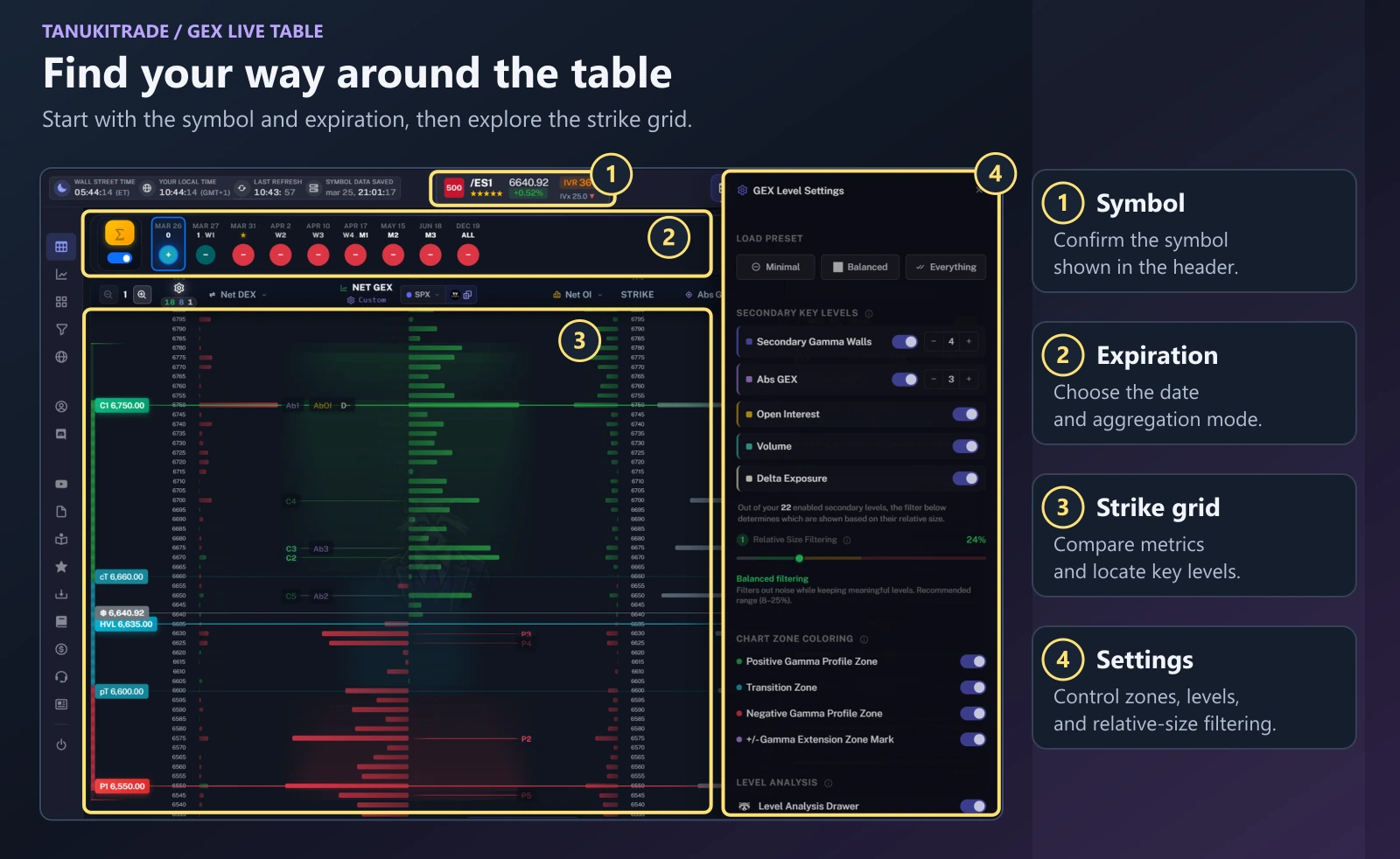
- Symbol. Confirm the symbol in the header. The header also shows price, daily change, IV rank, and IVx. Click it, or press Ctrl+K, to switch. See Symbols and futures.
- Expiration. Choose an expiration and check whether cumulative or standalone mode is selected. The mode determines which expirations contribute to the displayed analytics. Key Only narrows the strip. See Expirations.
- Strike grid. Spot is highlighted. The core columns are call open interest, put open interest, and the Net GEX bars. Three more columns are yours. Compare the metric values and profile bars at each strike, and locate the level badges.
- Settings. Open GEX Level & Chart Settings to choose secondary levels, enable zone coloring, and adjust relative-size filtering.
Details sidebar
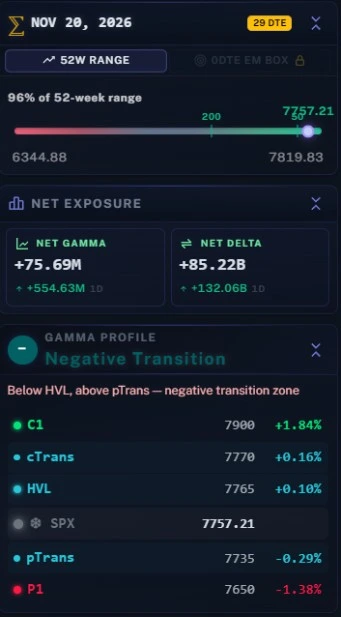
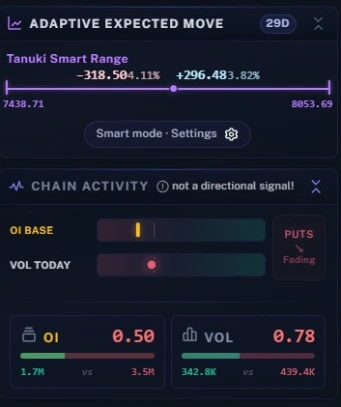
Beside the strike grid, the right-hand Details sidebar summarizes the selected expiration at a glance:
- 52W Range & 0DTE EM Box — where spot sits inside its 52-week range (or today's session range on
0DTE). - Net Exposure — total Net Gamma and Net Delta across the selected scope, with 1-day change.
- Gamma Profile — the current regime state (see GEX states) and key levels (
C1,cT,HVL,pT,P1) with distance from spot. - Adaptive Expected Move — the forward Tanuki Smart Range for the selected DTE.
- Chain Activity — open-interest baseline versus today's volume flow. It is not a direction call. See Chain Activity.
Choose your metric columns
While Net GEX stays fixed in the center of the table, you can assign any three strike metrics to the surrounding dynamic columns to compare positioning, gamma magnitude, and intraday flow side by side.
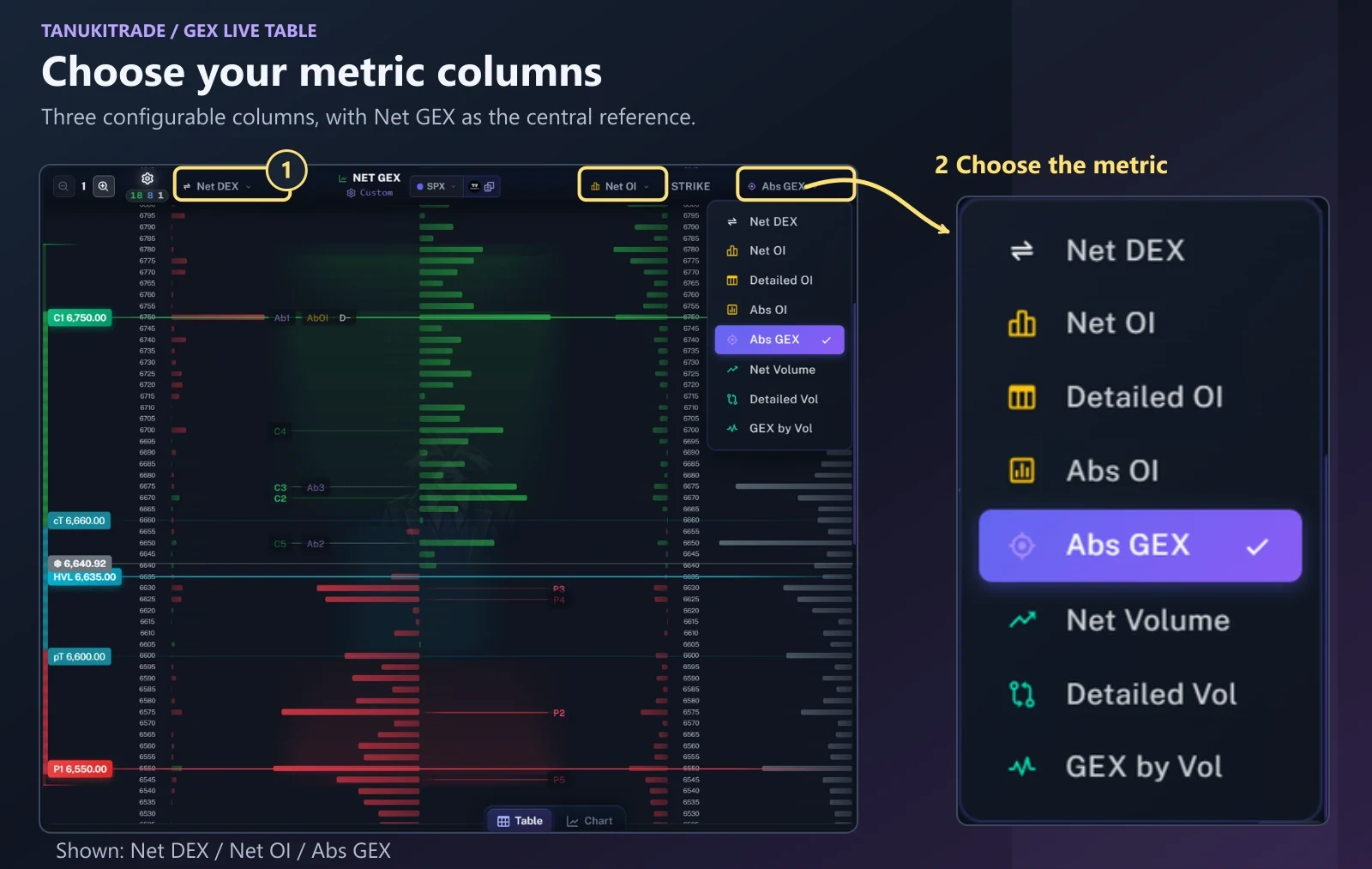
Open any of the three dynamic column dropdowns to choose from the eight strike metrics (Net DEX, Net OI, Detailed OI, Abs OI, Abs GEX, Net Volume, Detailed Vol, and GEX by Vol). Repeat for the other columns to compare different measures at the same strike. Hover a choice for the short definition.
The central Net GEX profile stays in place for comparison. A small Net GEX value can coexist with larger call-side and put-side values that offset each other. See Column metrics for full definitions and how open-interest and volume columns behave during the session.
Column Presets (Ctrl+L)
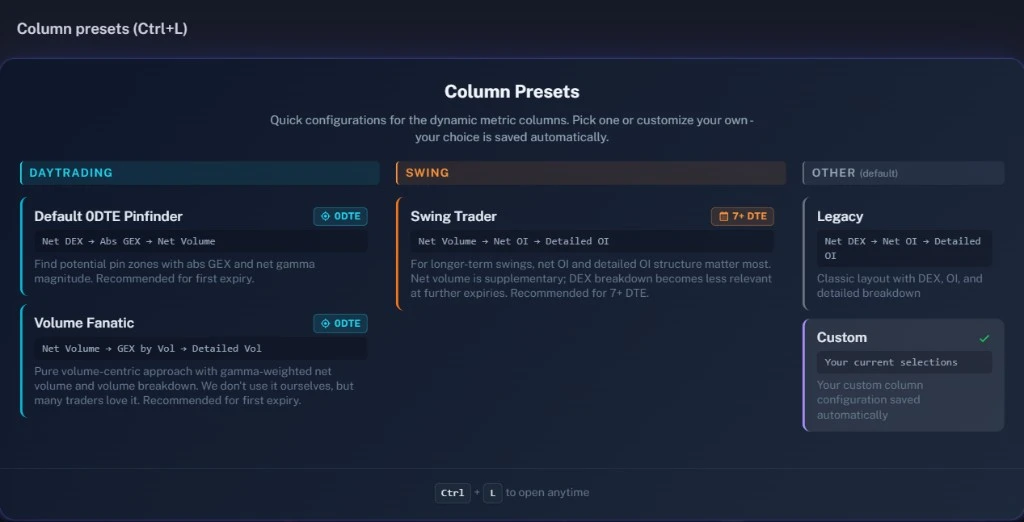
Press Ctrl+L on the GEX Live Table, or use the Column Presets button in the header. One click rewires the three configurable metric columns around the central Net GEX column. Your selected expiry, level toggles, and cumulative versus standalone mode stay put.
| Category | Preset | Columns (left → right) | Meant for |
|---|---|---|---|
Daytrading (0DTE) | Default 0DTE Pinfinder | Net DEX → Abs GEX → Net Volume | Find potential pin zones with Abs GEX and net gamma magnitude alongside today's net volume flow. Recommended for first expiry. |
Daytrading (0DTE) | Volume Fanatic | Net Volume → GEX by Vol → Detailed Vol | Pure volume-centric read of the front expiry with gamma-weighted volume and call/put volume breakdown. Drops delta and OI context. |
Swing (7+ DTE) | Swing Trader | Net Volume → Net OI → Detailed OI | For longer-term swings (about 7+ DTE), where net OI and detailed OI structure matter more than intraday DEX breakdown. |
| Other | Legacy | Net DEX → Net OI → Detailed OI | The classic fresh-browser default layout with DEX, net OI, and detailed call/put OI breakdown. |
| Other | Custom | Your current selections | Changing any individual column dropdown switches to Custom and saves your configuration automatically in the current browser. |
Show gamma zones
Gamma zones shade the strike rows between the primary walls and transition boundaries so you can see where spot sits inside the profile's structure at a glance.
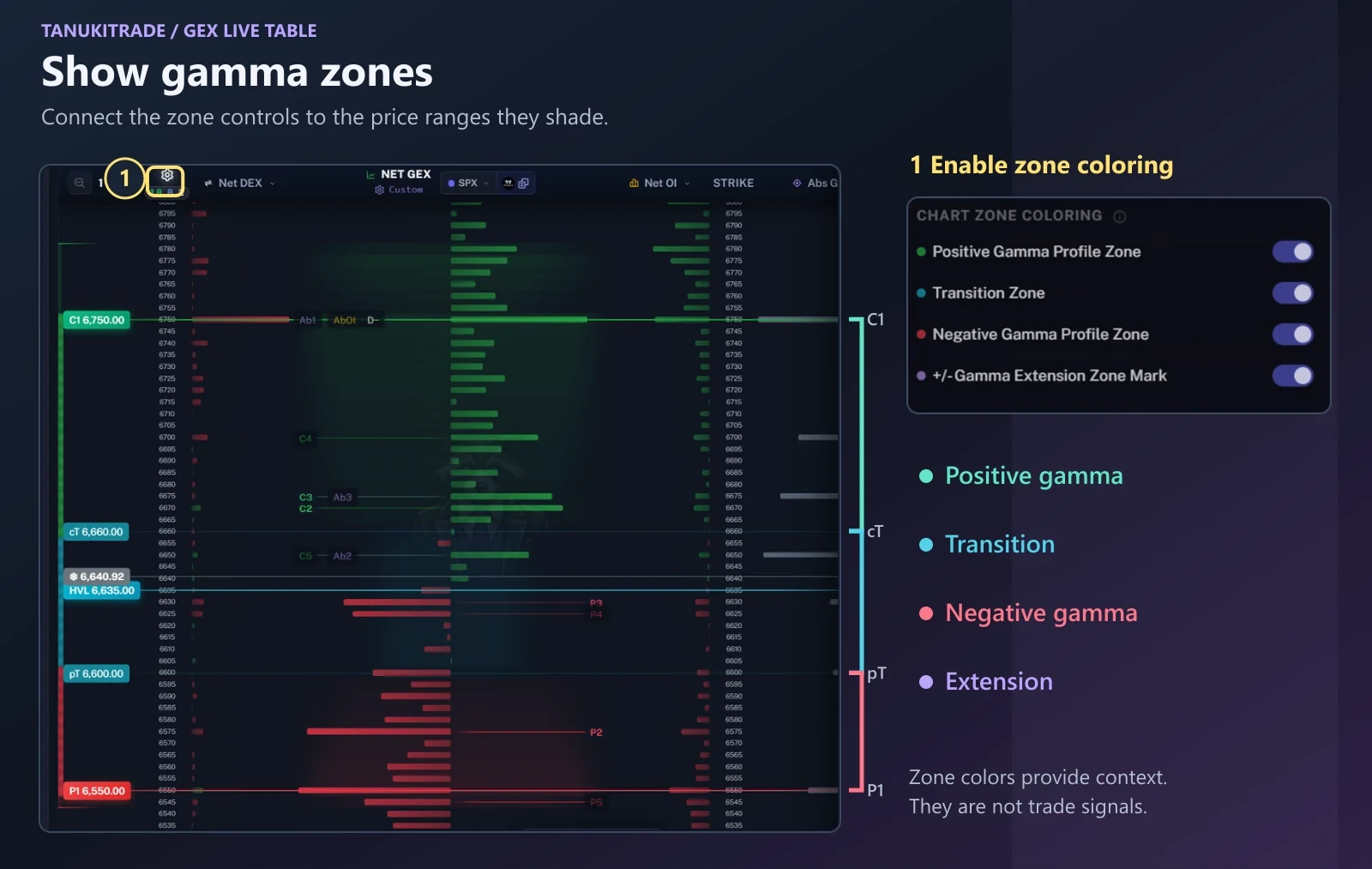
Open GEX Level & Chart Settings, find Chart Zone Coloring, and enable the zones you want to display. The table shades the same regions as the chart.
- Positive Gamma Profile Zone: the green region between Call Transition (
cT) and the Call Wall (C1). - Transition Zone: the turquoise region from Put Transition (
pT) throughHVLtocT. - Negative Gamma Profile Zone: the red region between the Put Wall (
P1) andpT. - +/− Gamma Extension Zone Mark: the extension regions beyond
C1andP1, identified by the purple control in settings.
HVL means High Volatility Level. pT means Put Transition. cT is the boundary you reach by walking down from the call wall toward HVL, and pT is the boundary you reach by walking up from the put wall toward HVL. HVL sits between them when the profile is valid.
The zone colors describe the displayed options-positioning structure. They are not buy or sell signals.
The table needs an ordered profile to draw the zones (P1 ≤ pT ≤ HVL ≤ cT ≤ C1). If the expected shading is missing, check that the relevant zone switches and the C1 and P1 levels are enabled. See HVL, Call & Put Walls for how the primary levels and boundaries are identified.
Add secondary levels
Beyond the primary walls and transition boundaries, you can turn on secondary level badges to highlight the largest secondary gamma walls, absolute gamma peaks, open-interest clusters, volume peaks, and delta-exposure extremes. Secondary level badges defines every label, including raw versus net peaks such as COI versus nCOI and CV versus nCV.
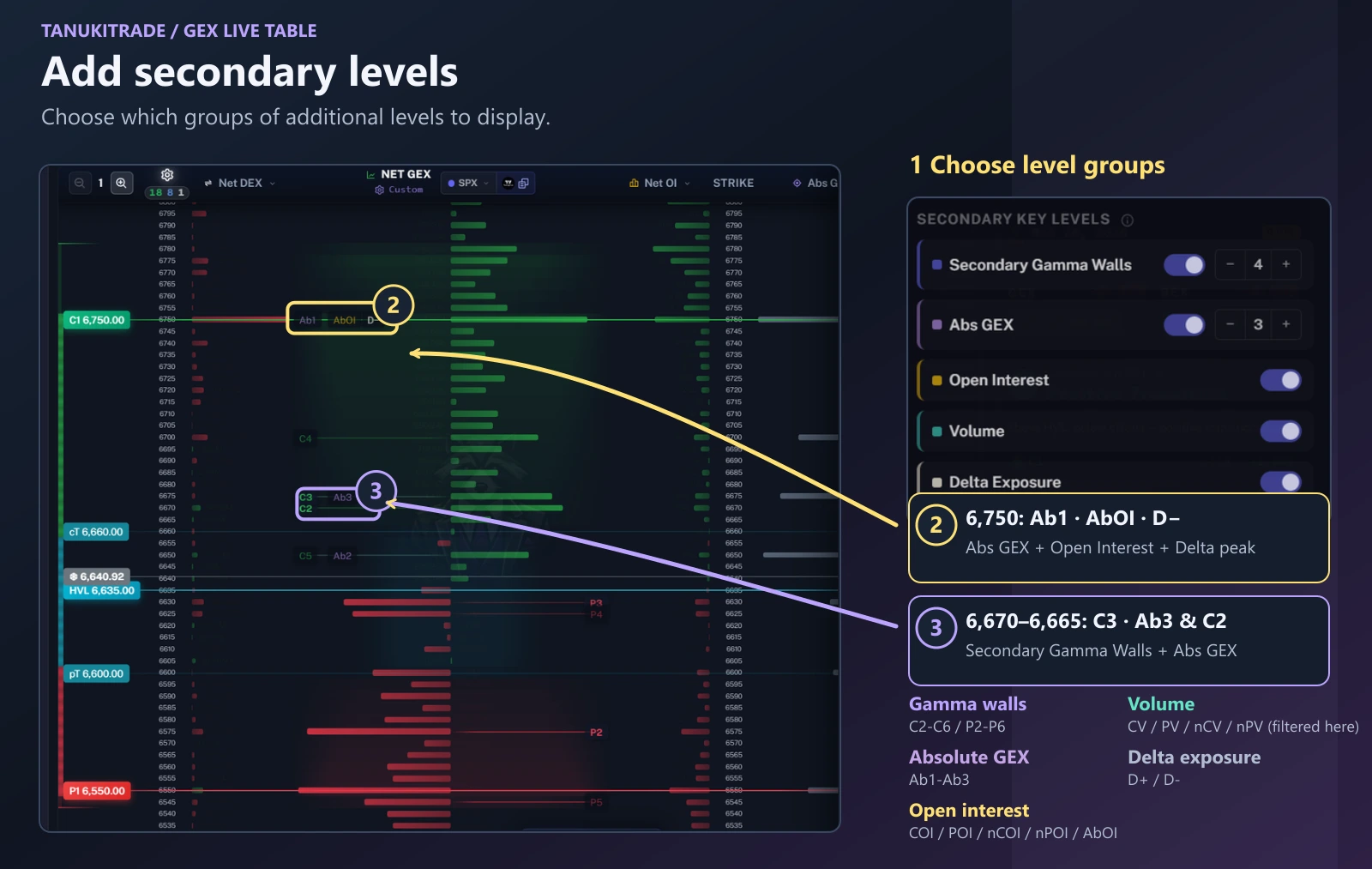
In GEX Level & Chart Settings, use the switches under Secondary Key Levels to show or hide each group. The count controls beside Secondary Gamma Walls and Abs GEX let you adjust how many ranked levels to display.
| Settings group | Level labels |
|---|---|
| Secondary Gamma Walls | C2–C6 and P2–P6 |
| Abs GEX | Ab1–Ab3 |
| Open Interest | COI, POI, nCOI, nPOI, AbOI |
| Volume | CV, PV, nCV, nPV |
| Delta Exposure | D+ and D− |
Before 9:30 AM ET, the volume labels are the previous session.
These labels add detail alongside the primary levels C1, cT, HVL, pT, and P1 (see Secondary level badges for the definition of every badge, including raw vs. net peaks such as COI vs. nCOI and CV vs. nCV). Different measures can share the same strike: in the illustration above, callout 2 at 6,750 combines Ab1 (Abs GEX), AbOI (Open Interest), and D− (Delta Exposure), while callout 3 at 6,670–6,665 shows C3, Ab3, and C2 (Secondary Gamma Walls and Abs GEX).
Enabling a group does not guarantee that every label will appear in the visible price range—for example, Volume is switched on above, but its peaks are hidden by the relative-size filter or sit outside the visible strikes.
Filter levels by relative size
When too many secondary badges crowd the strike grid, use Relative Size Filtering to hide smaller secondary peaks and inspect the level-status panel to see why any individual badge is hidden.
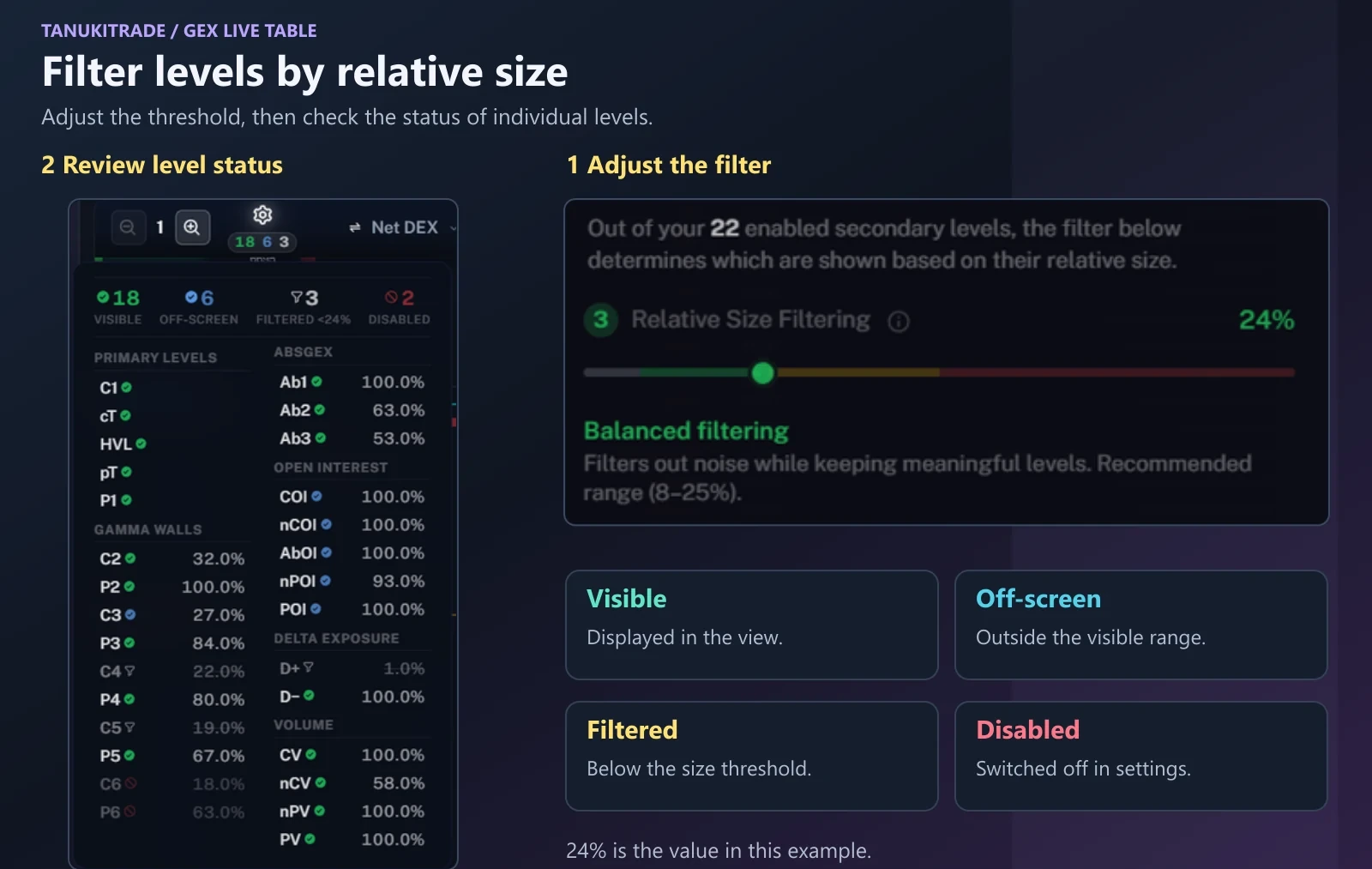
Adjust Relative Size Filtering to hide smaller secondary levels within each group. Increasing the threshold removes more of those levels from the display. The filter applies to secondary levels; C1, P1, and HVL remain. A fresh browser starts the slider at 15%, inside the 8–25% band the app calls balanced filtering. The Balanced preset button sets 19%. Above 25% is strong filtering and can empty a group on a thin name.
Open the level-status panel beneath the settings gear to check why an individual level is or is not visible. A filter badge also tells you how many secondary levels are hidden.
| Status | Meaning |
|---|---|
| Visible | The level is displayed in the current view. |
| Off-screen | The level lies outside the visible price range. |
| Filtered | Its relative size is below the selected threshold. |
| Disabled | The level is switched off in settings. |
In the illustrated panel, C4 is 22%, C5 is 19%, and D+ is 1%, so all three are filtered at a 24% threshold. P6 is disabled even though its relative size is 63%. The status tells you which reason applies.
Use the panel to distinguish a filtered level from one that is disabled or simply outside the visible range. A smaller relative size does not, by itself, make a level irrelevant to your analysis.
Inspect a level in context
Click any level badge in the strike grid to open the Level Analysis drawer, which explains what the label measures, which other labels converge on that strike, and how the strike sits relative to the gamma zones.
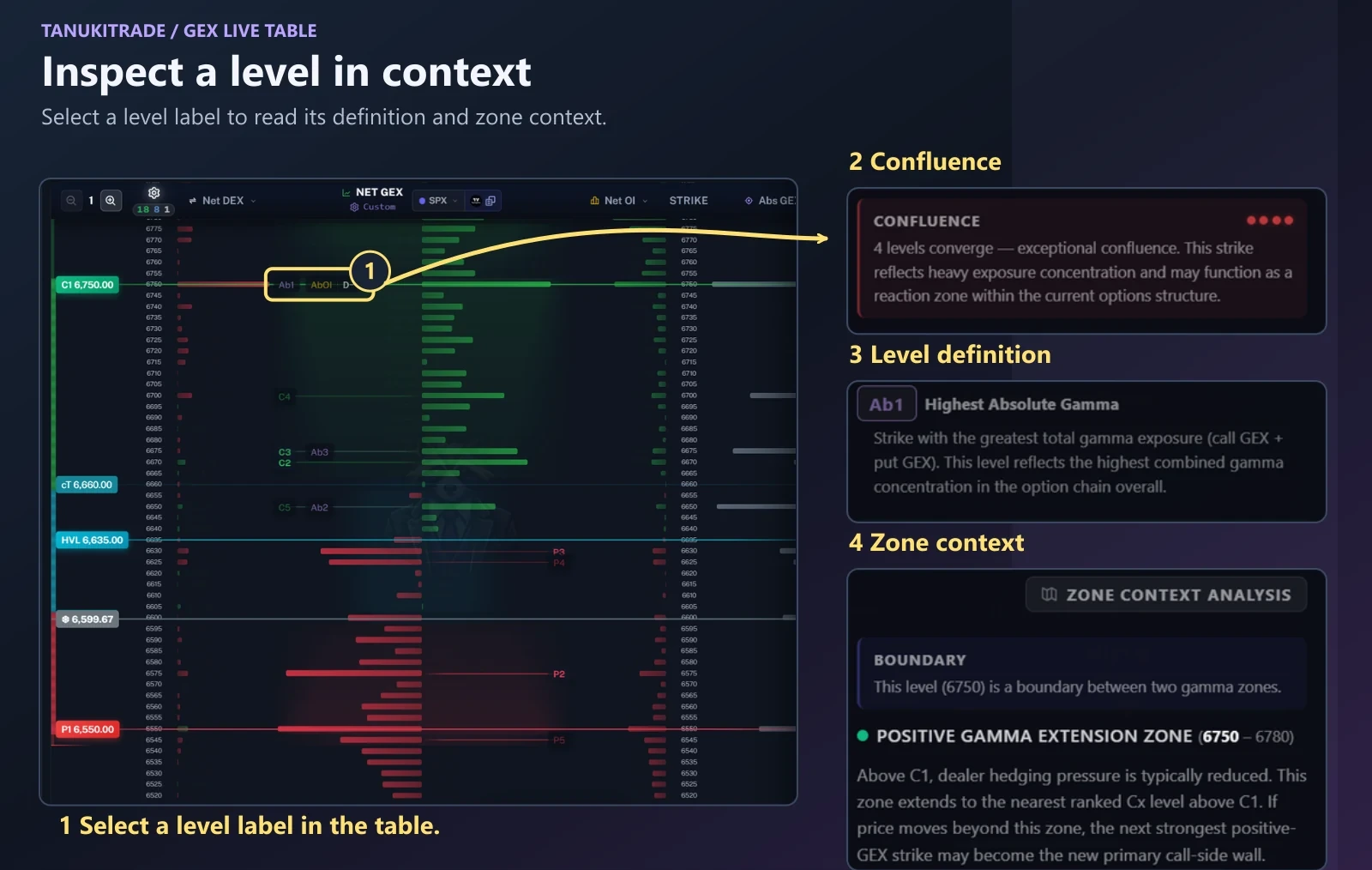
Select a level label in the table to open Level Analysis. Read the definition of the level, then review any other labels at that strike and the surrounding zone context. The panel also shows the distance from spot, in points and percent. On a phone the drawer comes up from the bottom.
- Confluence. The panel groups levels that share the strike. In this example,
C1, Ab1, AbOI, and D− are all located at 6,750. - Level definition. Each entry explains the measure behind the label. The enlarged Ab1 entry identifies the strike with the highest combined gamma exposure.
- Zone context. The panel explains the selected price's position within the displayed zones or at a boundary between them.
Several labels at one strike describe overlapping features of the options data. They provide analytical context, not a trade recommendation.
Also on the table
- Five cell-zoom steps. Saved in this browser.
- Compact view hides the Net GEX bars, DTE text, the idle mode control, and the refresh button.
- Copy Levels sits by the Net GEX header on desktop. See Copy levels to TradingView.
- The expected-move strip paints on the Net GEX column only for today's expiry (
0DTE). Before the 6:30 AM ET premarket snapshot exists—or when today's range is not yet available—enabling History (1MorALL) inCtrl+Mdisplays the most recent saved session's range (markedLAST) as a fallback. See Expected Move Box.
To view these levels and profile bars alongside price candles in the WebApp, open GEX Live Chart. If you also chart on TradingView, you can optionally use Copy levels to TradingView to paste a current WebApp snapshot into the GEX Profile PRO TradingView indicator (not needed if you only use the WebApp).
TanukiTrade documentation. Levels are context, not a recommendation. tanukitrade.com