
WebApp
GEX History/Replay
Review recorded options analytics in GEX Live Chart or GEX Live Table. Choose a historical session and move through its saved moments to compare gamma levels, exposure, and the available expected-move data.
Already using GEX Live? On desktop, select your symbol and expiration, choose Replay / GEX History, and confirm. Then choose a date and a saved time in the Replay toolbar.
The examples below show SPX on July 6, 2026. The Chart is set to 7:00 AM ET and the Table to 9:25 AM ET. Each image shows a different recorded moment.
Enter Replay
- Open GEX Live Chart or GEX Live Table and select the symbol and expiration you want to review.
- Choose Replay / GEX History and confirm the switch. Live spot streaming pauses. Automatic live analytics refresh also pauses.
- Check the amber frame and Replay label, then select a historical session and time.
Entering Replay requires confirmation. Panning the chart does not switch it into Replay.
Replay uses cumulative mode and Key Only expiration filtering during the session. Check the selected expiration after changing the historical date. You can use Ctrl+K to switch symbols while staying in Replay.
Read the chart at the selected time
The Chart freezes on the selected historical timestamp and plots that moment's gamma levels, profile bars, and candles, with the rest of the session's price path available in gray through the Future toggle.
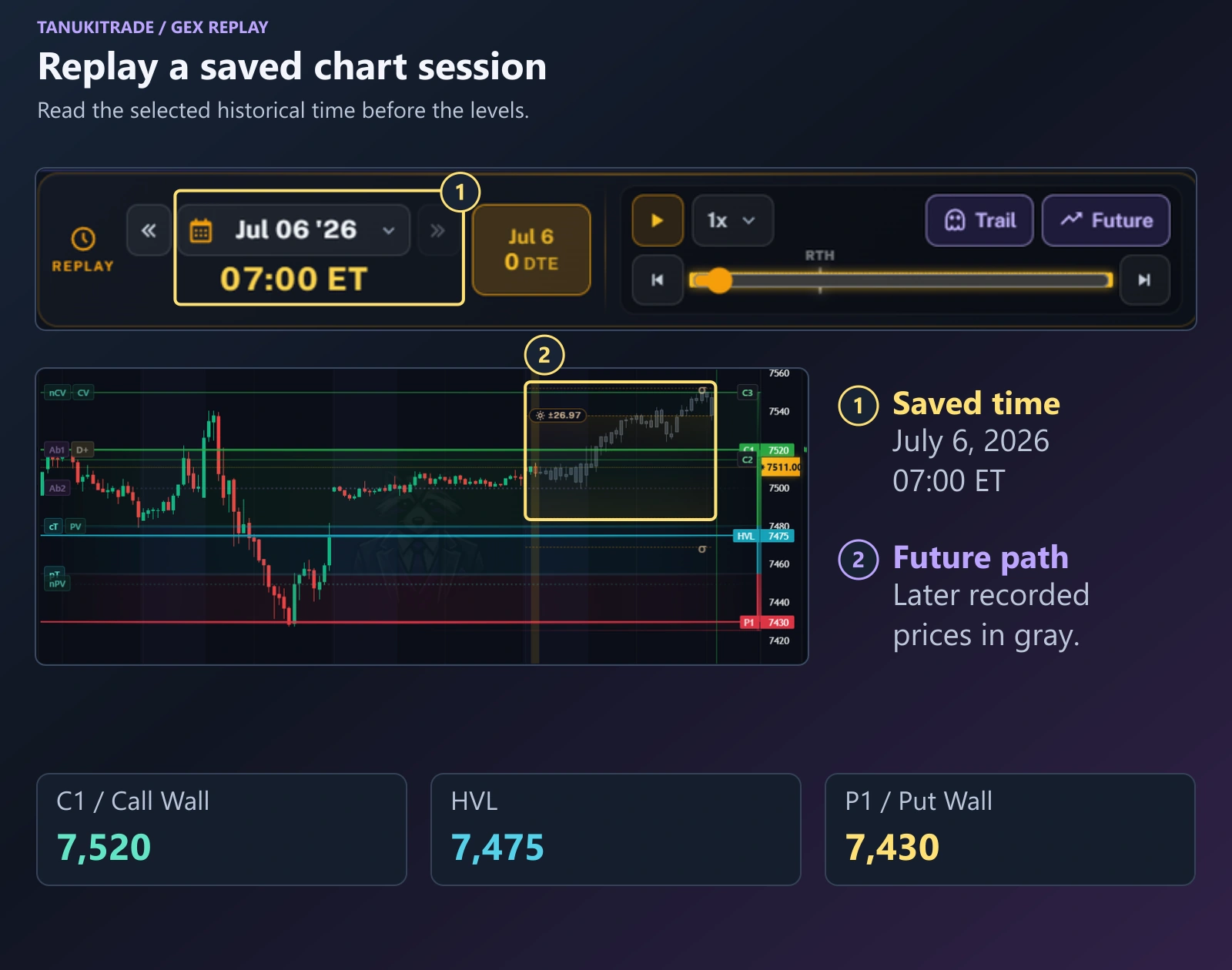
C1 is 7,520, HVL is 7,475, and P1 is 7,430. The gray candles show later recorded prices through the Future overlay.Read the date and time before interpreting the levels. The displayed analytics belong to the selected historical moment.
On the Chart, Future adds the rest of that session's recorded price path in gray. This is historical price data from after the selected moment, not a forecast. Turn Future off to study the selected snapshot first, then enable it when you want to compare the later price path.
Keep the candle interval separate from the Replay step. The Chart example uses 15-minute candles; the saved analytics can be stepped through at a different interval.
Move through saved moments
Use the Replay toolbar to pick a historical day, scrub or step through recorded snapshots, adjust playback speed, toggle Trail and Future, or return to live streaming.
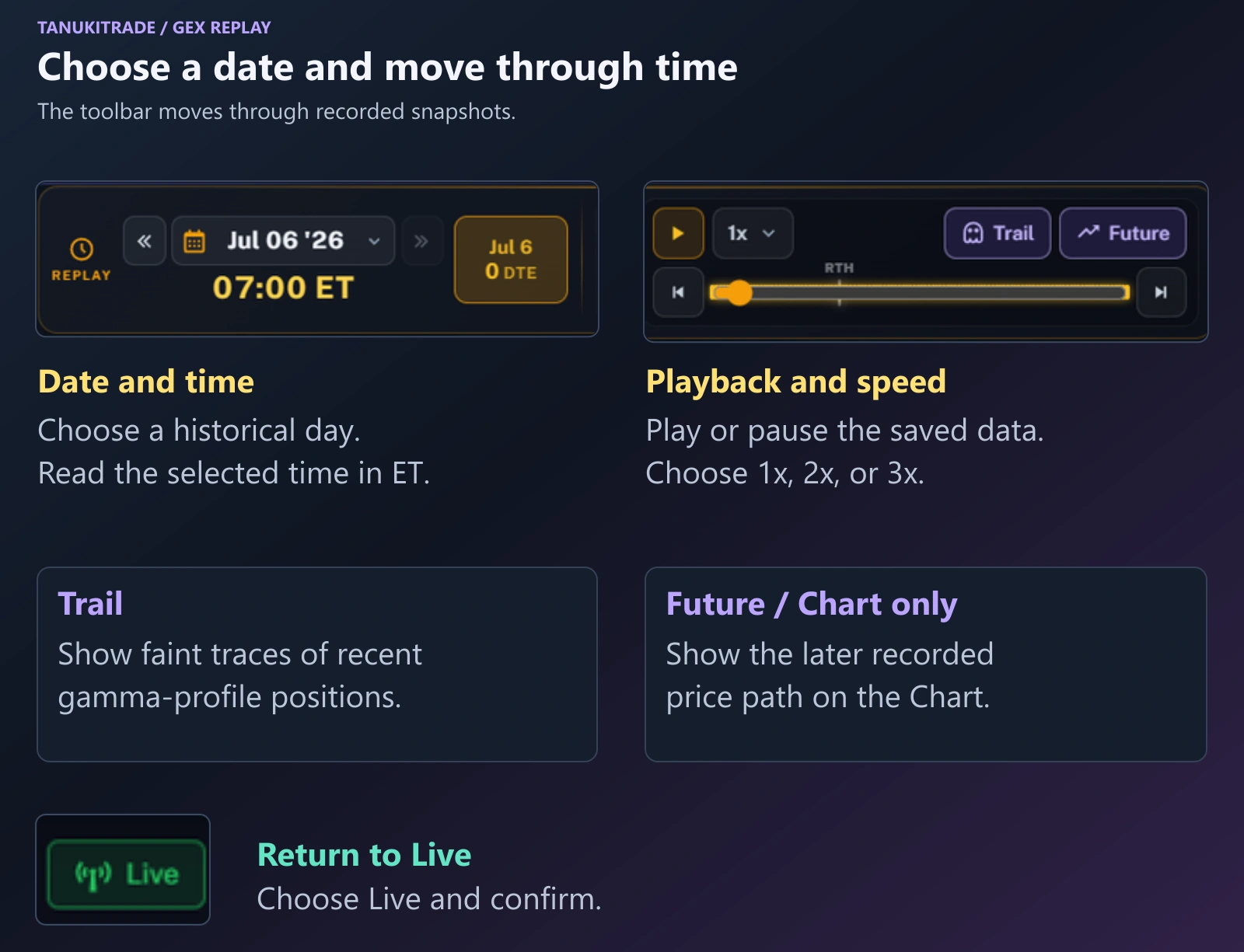
| Control | What to do |
|---|---|
| Date and calendar | Select the historical session you want to examine. |
| Time slider | Move to a saved moment within that session. Dragging the slider pauses playback. |
| Step backward / forward | Move one saved moment at a time. |
| Play / pause | Run through the saved moments or stop at one for closer inspection. |
| Speed | Choose 1x, 2x, or 3x playback. |
| Trail | Show faint traces of recent gamma-profile positions. |
| Future | On the Chart, show the later recorded price path for that session. |
Use Space to play or pause, Left / Right to step one saved moment, and Shift + Left / Right to move one day.
Recent 0DTE history has saved analytics at roughly five-minute intervals. Older history uses wider intervals. See snapshot spacing and coverage below.
Review exposure in Table view
In Table view, Replay loads the strike grid and right-hand exposure cards for the selected historical moment so you can step through how strike-by-strike gamma, delta, and profile traces evolved.
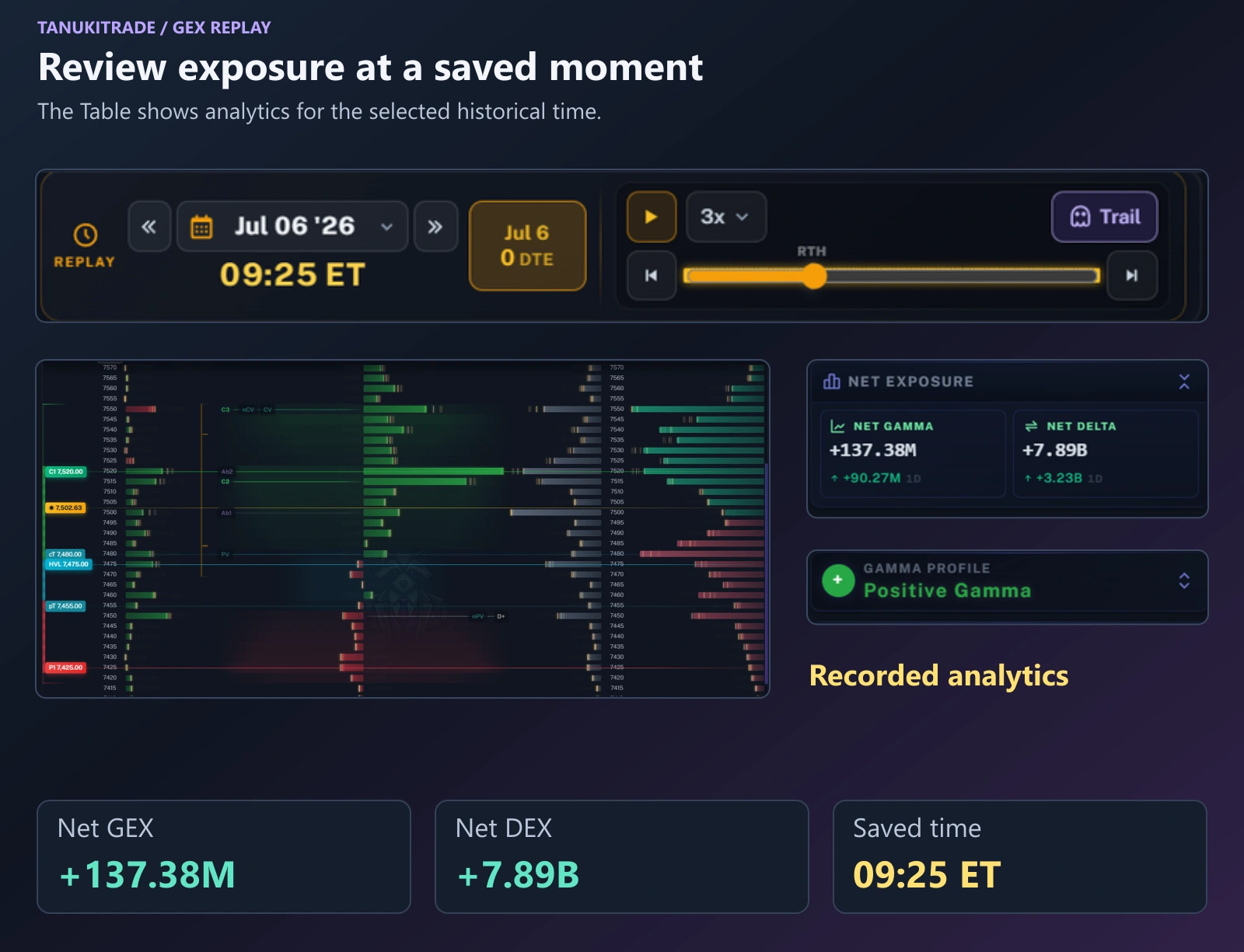
Use Table view to compare values and profiles across strikes at the selected time. Step forward or backward and observe which exposure values, profile shapes, and level labels change.
The Trail overlay provides faint references to recent gamma-profile positions. Read the current profile separately from these traces.
You can also review the historical Expected Move Box and other available sidebar metrics alongside exposure. Read their snapshot labels as well as the Replay clock. See Expected Move Box for the EOD, PRE, and OPEN phases.
The Chart and Table examples here use different times. Confirm the selected date, time, symbol, and expiration whenever you compare saved views.
Check the expiration when changing dates
The expirations available in Replay belong to the historical day you select. The app keeps the same expiration date when it is available. Otherwise, it tries the same expiration role, then the closest saved expiration, then ALL. A note identifies an automatic change.
An expiration's role changes as its date approaches. If the exact date is unavailable, a 0DTE selection follows the selected day's 0DTE expiration, while an M2 selection follows that day's M2 role.
ALL represents the historical day's full chain rather than one expiration date.
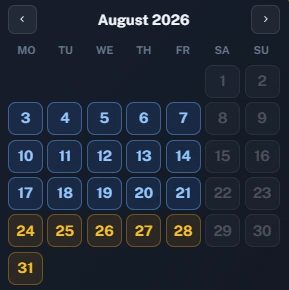
Use the calendar colors to check availability before choosing a date:
- Orange: saved data is available for the selected expiration role.
- Blue: saved data is available for a different expiration role.
- Gray: no data is saved for that day.
Hover a calendar day to see the available roles and saved-moment count.
Check snapshot spacing and coverage
Use the age of a historical session to judge the detail available. The approximate spacing becomes wider for older sessions:
| Age of the session | Approximate snapshot spacing |
|---|---|
| Last 2 weeks | About every 5 minutes |
| 2–4 weeks | About every 15 minutes |
| 1–2 months | About every 30 minutes |
| 2–3 months | About hourly |
| 3–6 months | About every 2 hours |
| Beyond 6 months | About four snapshots per day: premarket, open, midday, and close |
Replay sessions cover approximately 6:40 AM to 3:55 PM ET. This historical session window is separate from the live analytics update window.
Monthly expirations and ALL have the longest retained history. 0DTE and weekly history use a rolling window of a few months. Replay supports the key roles 0, 1, W1–W4, M1–M3, and ALL.
Share a saved moment
A shared Replay link opens the same recorded moment for another PRO member after they confirm the switch into Replay. Returning to Live clears the Replay link.
Use Replay on desktop. If your browser cannot run Replay, Live mode remains available.
Use Replay for a focused review
- Choose one symbol, date, and expiration, and note the selected time.
- Pause playback and read the gamma state, levels, and exposure before showing the Future overlay.
- Step through the saved moments and compare how the displayed analytics change.
- On the Chart, enable Future when you are ready to review the later recorded price path.
Levels provide analytical context, not buy or sell signals. Replay helps you inspect recorded data; it does not score a setup or recommend a trade.
Return to Live
Choose the green Live button and confirm. The app restores your previous cumulative/standalone choice and Key Only setting, then loads current live data.
In Live mode, WebApp options analytics refresh about once a minute from 6:40 AM to 4:00 PM ET on weekdays.
Spot prices stream separately in real time while the live feed is available.
For the separate TradingView indicator, see GEX History PRO.
TanukiTrade documentation. Levels are context, not a recommendation. tanukitrade.com