
WebApp
Chart and layout
Press Ctrl+M (or right-click the chart or table background on desktop) to open GEX Level & Chart Settings. Press Esc to close it. Settings are saved in your current browser and shared between GEX Live Table and GEX Live Chart.
Shared presets and level drawer
At the top of GEX Level & Chart Settings, Load Preset switches between Minimal, Balanced, and Everything. Candle Style applies to the Chart view.
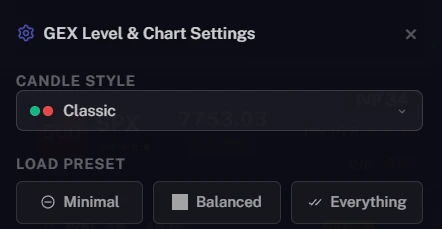
Use Load Preset at the top of the drawer to apply a starting configuration across the shared views:
- Minimal — turns Expected Move overlays off and keeps a clean primary level view.
- Balanced — enables the three 0DTE Expected Move chips (EOD, PRE, OPEN), sets Expected Move history to
1M, turns on Smart EM Range, and sets relative-size filtering to 19%. - Everything — enables the 0DTE chips, history, and the individual Advanced expected-move curves alongside the level groups.
Below the presets, the drawer controls secondary level groups, relative-size filtering, zone coloring, and expected-move overlays. A visible-area counter shows how many levels fall within the currently visible price range.
- For secondary level groups, zone coloring, relative-size filtering, timeframes (
1mto1D), the premarket toggle, and candle themes, see GEX Live Chart and GEX Live Table. - For the expected-move sections inside the drawer, see Expected Move Box and Adaptive Expected Move.
Workspace layout: Compact, sidebar, and Ultra-wide
Use the expand/collapse icon at the top right (highlighted in yellow) to switch between Default view and Compact view. Compact hides the breadcrumb bar, DTE text, Net GEX bars, and secondary left-hand strip buttons to give the chart or table more vertical height.
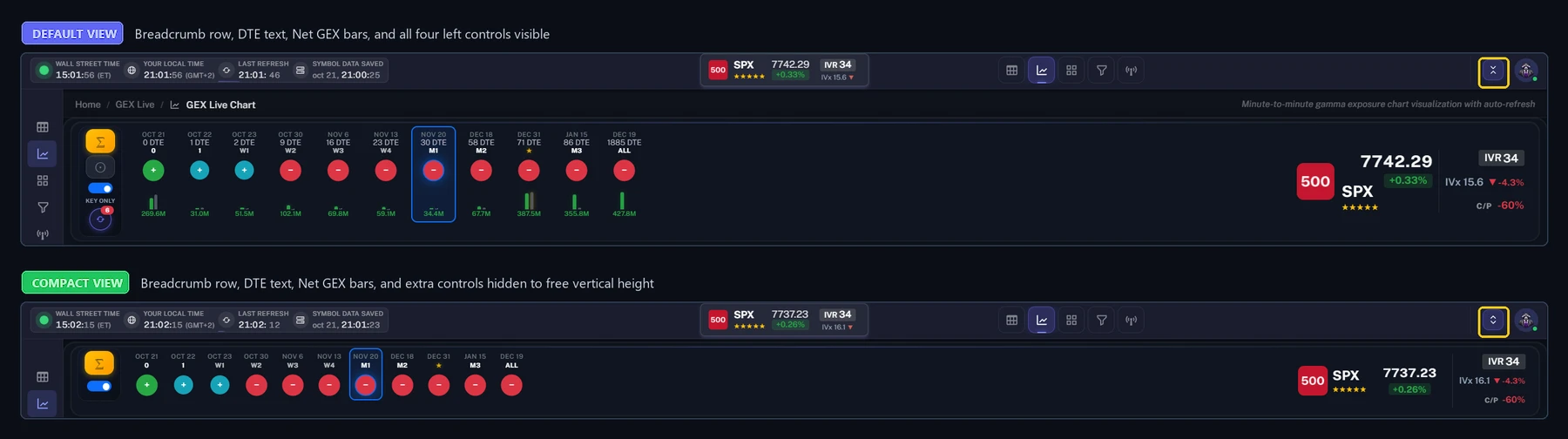
- Compact — toggled from the vertical expand/collapse button in the top-right header (next to your profile icon). It hides the top breadcrumb bar, the DTE text and Net GEX bars under the expiration bubbles, and the secondary buttons on the left of the expiry strip so the chart or strike table gets more vertical height.
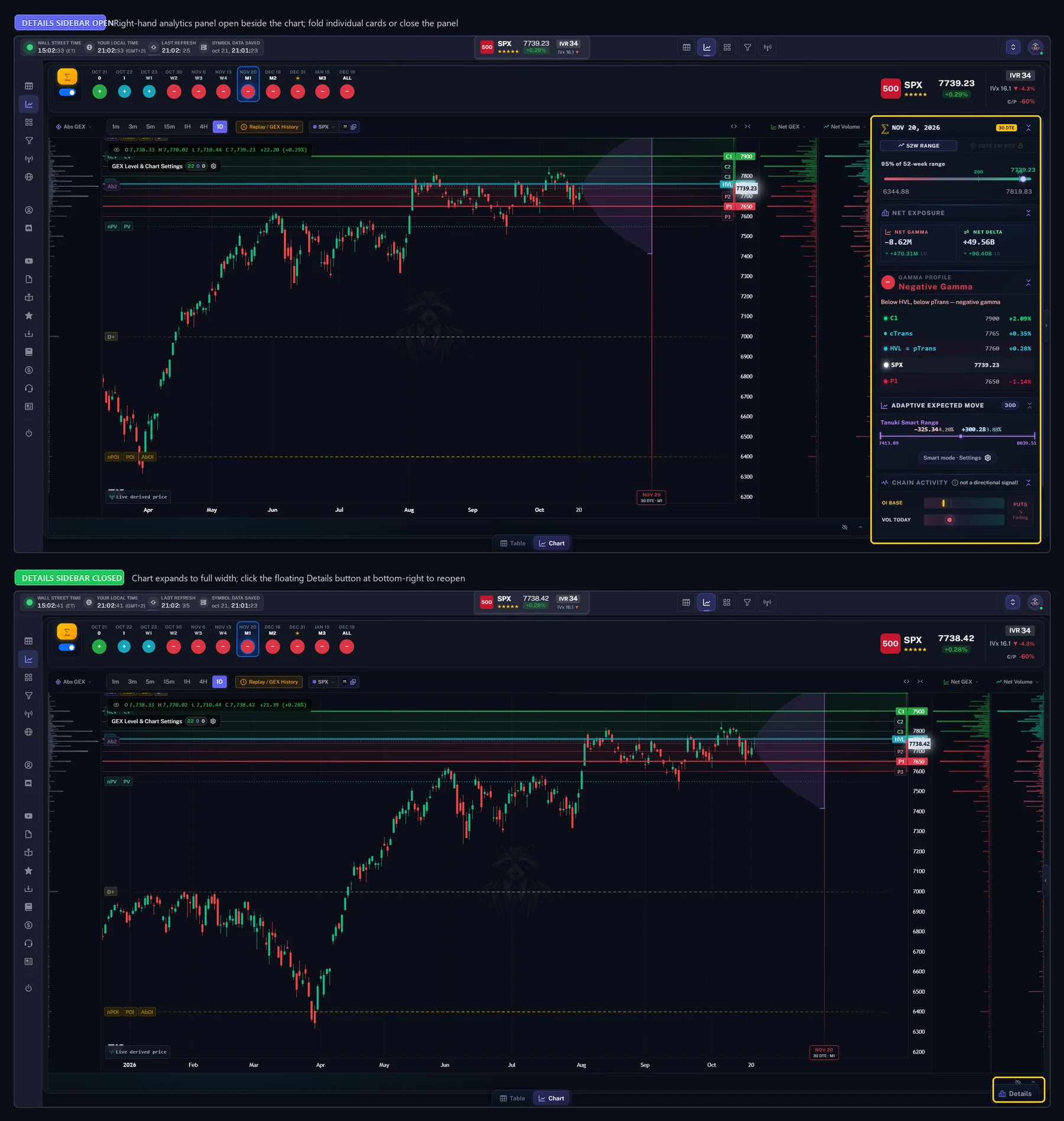
- Sidebars (navigation rail & Details panel) — the left navigation menu stays in a slim 56-pixel icon rail that expands on hover. On the right, the analytics sidebar (Details) can be folded card by card or closed completely so the chart spans the full width; click the floating Details button in the bottom-right corner to reopen it.
- Ultra-wide — by default, the WebApp caps content width at 2,400 pixels. On displays at least 2,400 pixels wide, an expand/collapse toggle appears in the top header (along with a glassy hint pill in the right gutter) to lift the 2,400-pixel cap and fill the full screen width. It stays off when the browser window is narrower, and the preference is saved in your current browser.
Below, the top view shows the right-hand Details sidebar open beside the chart; the bottom view shows it closed so the chart expands across the full width, with the floating Details button in the bottom-right corner ready to reopen it.
TanukiTrade documentation. Levels are context, not a recommendation. tanukitrade.com