
WebApp
Options Screener
Narrow the supported symbol list using volatility, gamma profile states, earnings, liquidity, and price. Compare the matching rows, then open a symbol in GEX Live for a closer look at its options analytics.
Already using the WebApp? Open Options Screener, choose a built-in filter or open Filters, and review the active criteria above the table.
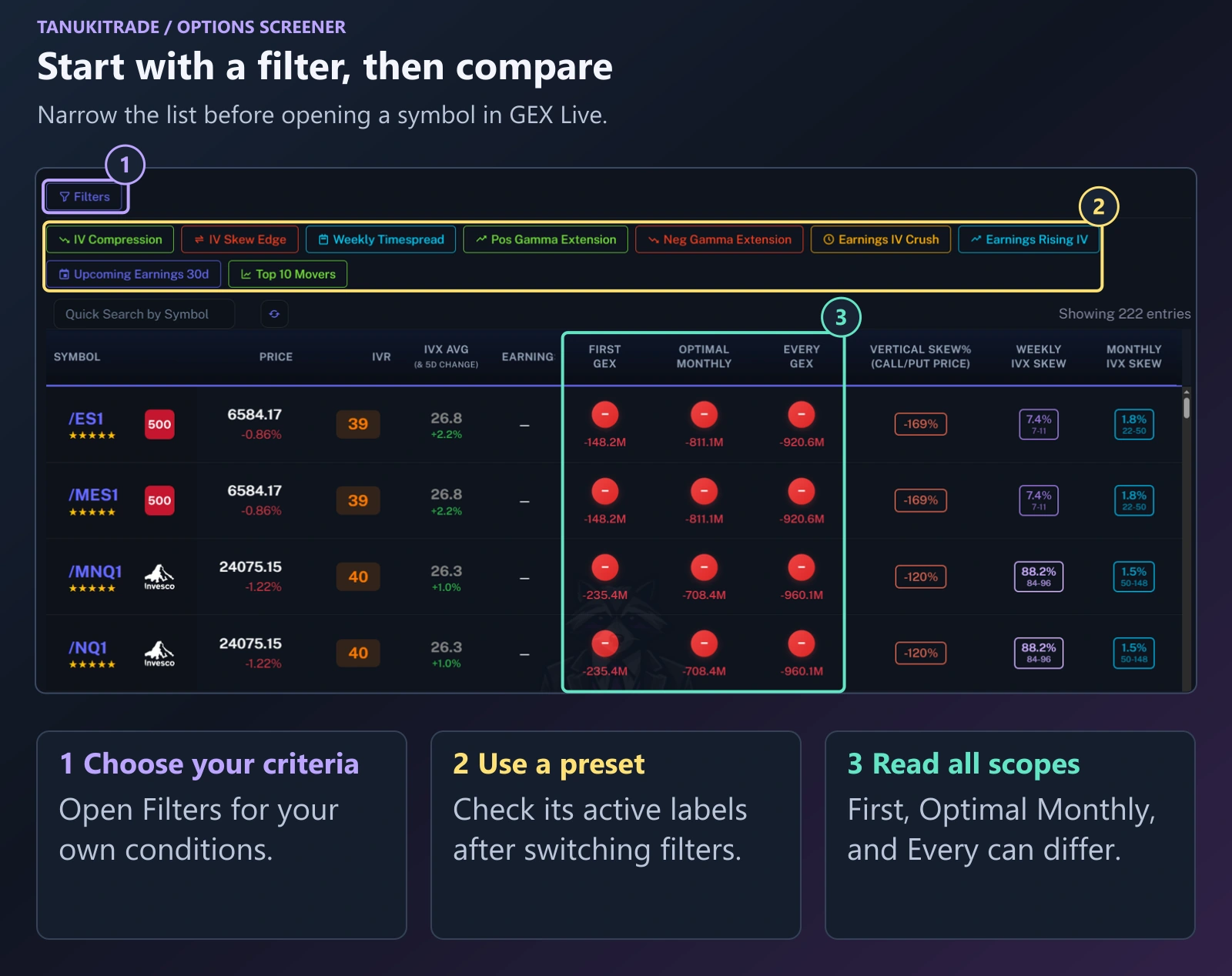
- Filters button: open Filters to build your own custom conditions across Stock Data, IV & Skew Metrics, and GEX Metrics.
- Built-in preset chips: click a preset for a predefined set of conditions, then check the active filter labels above the chips.
- Three gamma scopes: compare the First GEX, Optimal Monthly, and Every GEX badges and net GEX values across expirations, then click any symbol to open it in GEX Live Table or GEX Live Chart.
Use Quick Search by Symbol to find a ticker within the filtered results, or click Clear All to remove active filter criteria before starting a new comparison.
| Column | What to read |
|---|---|
| Symbol and liquidity stars | The instrument and its liquidity rating. Instrument-type filters help separate stocks, ETFs, indices, futures, and the CFD/crypto group. Futures sort after cash names. See Symbols and futures. |
| Price | The displayed price and one-day percentage change. |
| IVR | Implied Volatility Rank (0–100 scale relative to the symbol's own history). Keep this reading separate from the IVx level. |
| IVx Avg (& 5D Change) | The summary implied-volatility index reading, with its five-day change underneath. |
| Earnings | Days until or since the symbol's earnings report. Read it alongside any earnings filter you applied. |
| First GEX / Optimal Monthly / Every GEX | Gamma profile state badges and Net GEX values for three expiration scopes. |
| Vertical Skew % (Call/Put Price) | Call-versus-put pricing skew within an expiration. This is separate from the term-structure comparisons to its right. |
| Weekly / Monthly IVx Skew | Horizontal IVx term-structure comparisons across expiration horizons. |
Mapped instruments use the related underlying options data described in Symbols and futures.
Filter the first expiration by gamma state
The gamma-extension presets filter the symbol list by the front expiration's GEX state, while leaving the longer expiration scopes open for comparison.
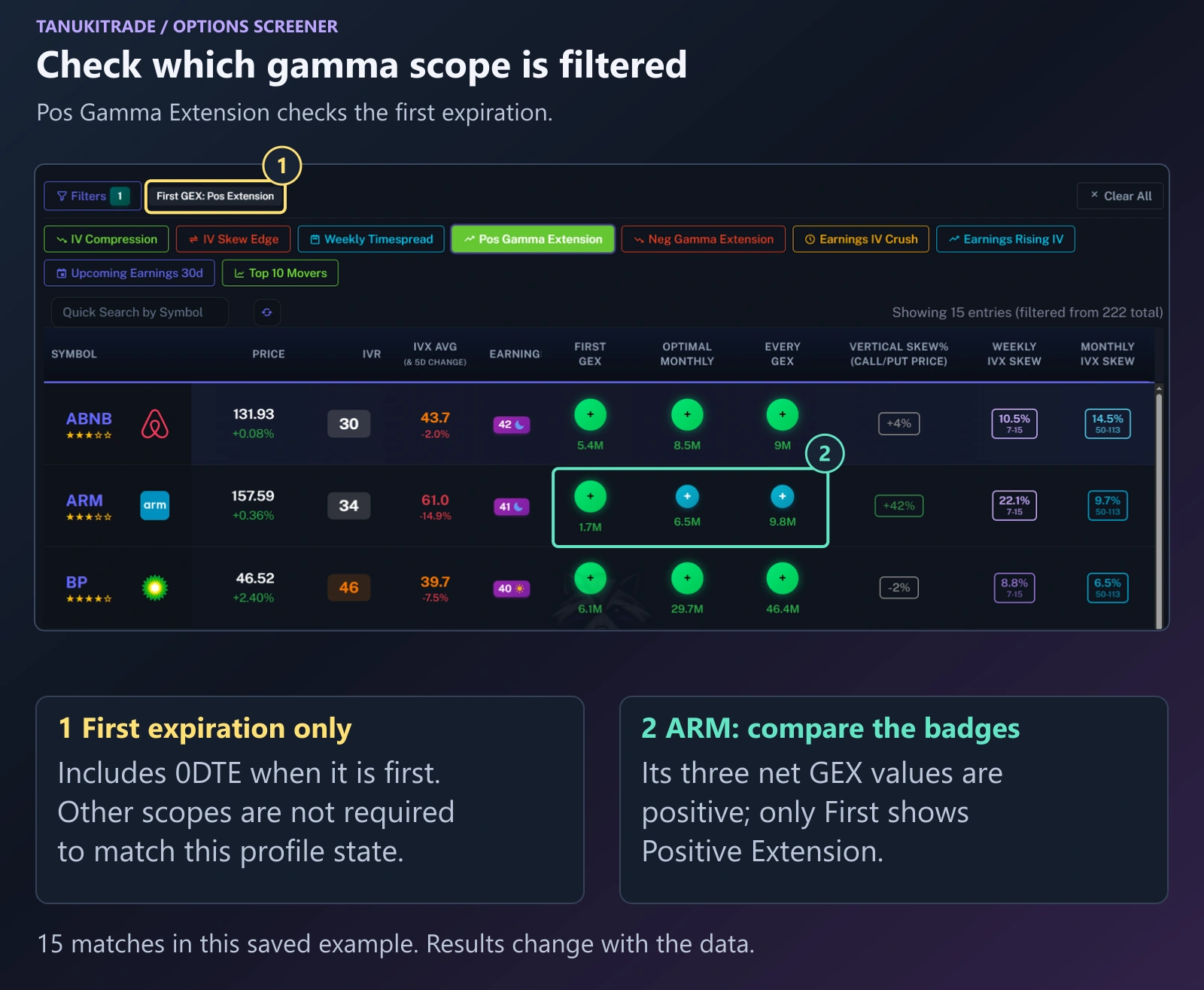
Choose Pos Gamma Extension to filter for a positive extension state on the first expiration. In this state, spot is at or above C1 (the Call Wall). It includes 0DTE when the first available expiration is the same-day expiration.
This preset does not require the Optimal and Every scopes to be in positive extension. Check those two badges separately, or use the custom filter example below to require all three scopes at once.
You may also see this state called Positive Gamma Squeeze. The interface uses both Squeeze and Extension; the preset shown here is labeled Pos Gamma Extension. Neither term is an instruction to buy or a prediction of the next price move.
Compare the three gamma scopes
Each row displays three gamma badges side by side so you can compare the front expiration against the monthly window and the full chain at a glance.
| Scope | What it covers |
|---|---|
| First GEX | The first available expiration (including 0DTE when applicable). |
| Optimal Monthly | An expiration bucket around 35–70 days to expiry. |
| Every GEX | All available expirations aggregated together (cumulative full chain). |
Hover a badge to read its description. Read the profile state separately from the net GEX number underneath it. In the ARM example, all three net GEX values are positive, but the three profile states are not all Positive Extension.
The scope describes which options data is being compared. It does not identify a preferred holding period. See GEX states for the state definitions and Standalone and cumulative for how expirations aggregate.
Inspect IV Skew Edge
The IV Skew Edge preset combines five-star liquidity, price, elevated implied volatility, and a wide call-versus-put skew to surface liquid names with pronounced vertical skew.
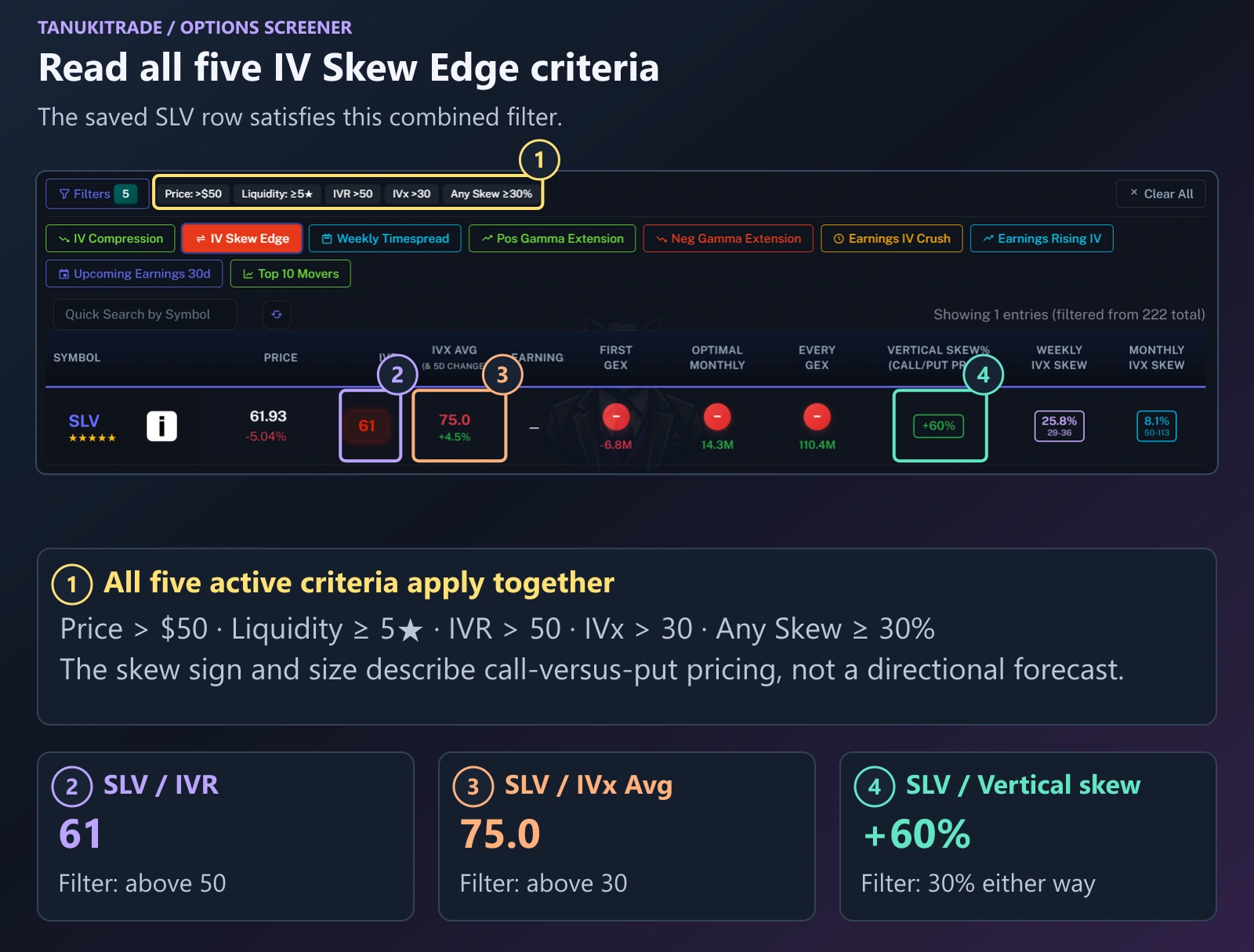
The numbered callouts on the image correspond to the four steps below:
- Active filter chips (
Filters 5): confirm all five conditions at the top—Price: >$50,Liquidity: ≥5★,IVR >50,IVx >30, andAny Skew ≥30%. - IVR (
61on SLV): checks that Implied Volatility Rank is above50relative to the symbol's own past year. - IVx Avg (
75.0,+4.5%): checks that the average implied volatility level across expirations is above30. - Vertical Skew % (
+60%): checks that call-versus-put pricing skew is at least30%in either direction (positive means calls price richer than puts; negative means puts price richer than calls).
Keep the skew sign and magnitude separate from a directional forecast. A call-versus-put pricing difference describes options pricing; it does not predict the next underlying price move.
Combine an earnings window with rising IV
The Earnings Rising IV preset narrows the list to symbols reporting within the next 30 days whose implied volatility has already increased over the past five sessions.
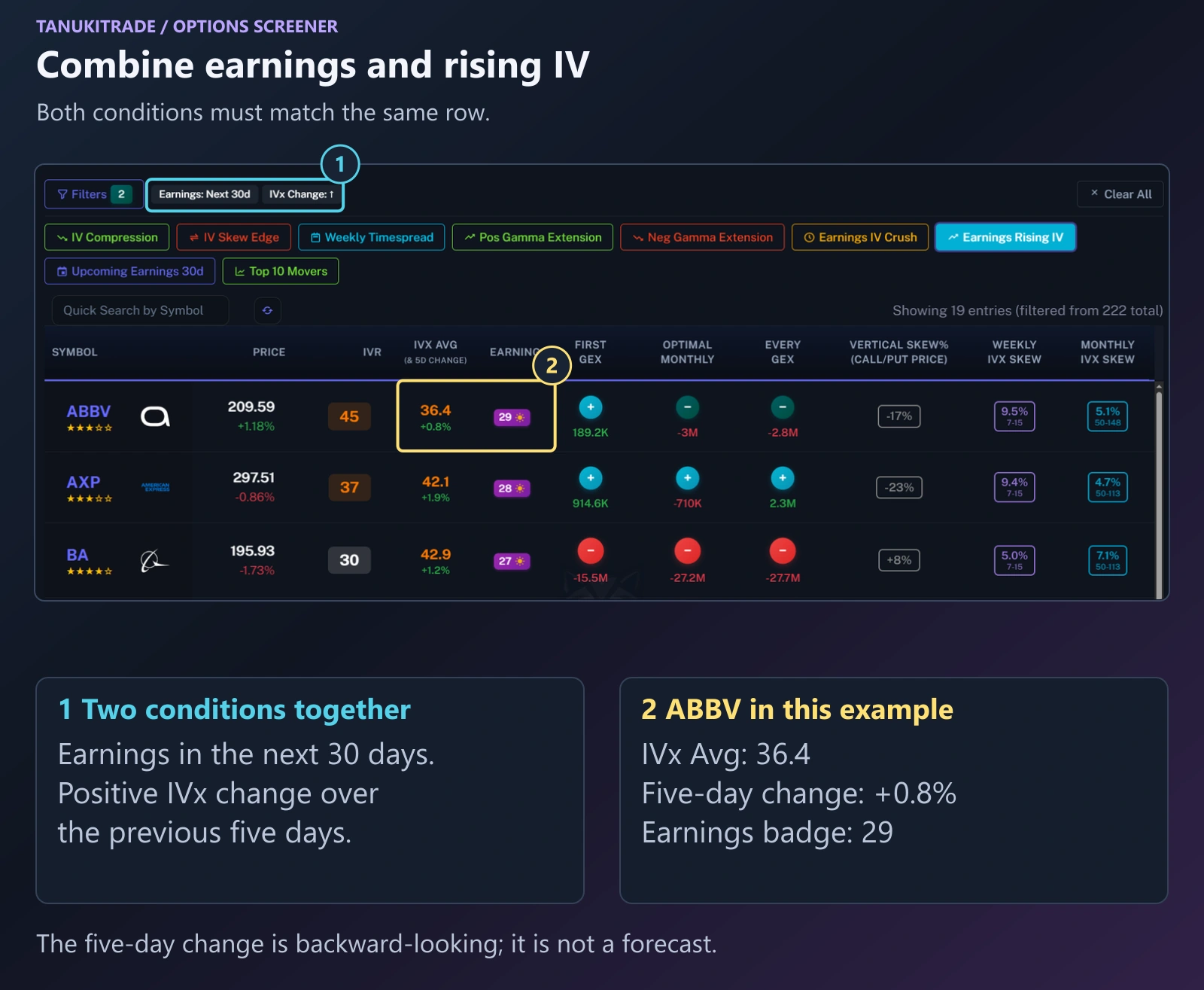
Choose Earnings Rising IV to compare symbols with an upcoming earnings report and rising implied volatility over the previous five days. Both conditions must match.
The five-day change describes what IVx has already done. It does not promise that implied volatility will continue to rise or describe how the underlying will react to the report.
Use Upcoming Earnings 30d when you want the earnings window without the rising-IV condition.
Require the same profile state across all three scopes
When a built-in preset only checks the front expiration, open the Filters drawer to require a matching GEX profile state across First, Optimal Monthly, and Every simultaneously.
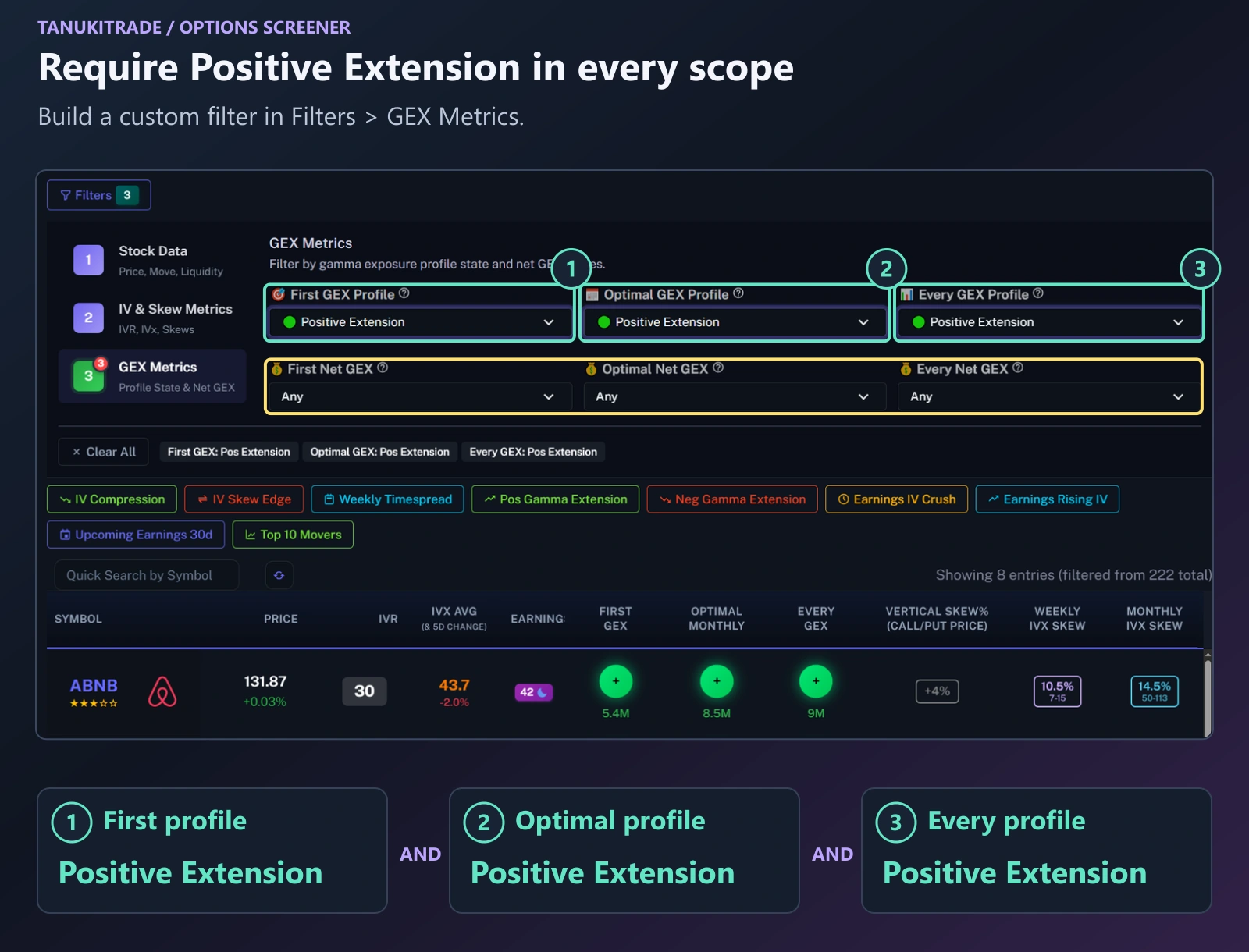
- Open Filters, then select GEX Metrics.
- Set First GEX Profile to Positive Extension.
- Set Optimal GEX Profile to Positive Extension.
- Set Every GEX Profile to Positive Extension.
- Check the three active filter labels and compare the matching rows.
These conditions apply together. Unlike the First-only preset, this custom filter requires Positive Extension across First, Optimal, and Every.
The Net GEX dropdowns are separate criteria. Leaving them at Any adds no net GEX value restriction. Use the profile dropdowns to select a state; use the net GEX controls when you also want to restrict the exposure values.
The other filter groups are Stock Data and IV & Skew Metrics. Use them to add price, liquidity, volatility, skew, or other supported conditions, then check the active labels again.
Compare the other built-in filters
| Preset | Conditions |
|---|---|
| IV Compression | IVR above 35; IVx Avg above 30; negative five-day IVx change; last price above $50; five-star liquidity. |
| IV Skew Edge | IVR above 50; IVx Avg above 30; vertical pricing skew of at least 30% either way; last price above $50; five-star liquidity. |
| Weekly Timespread | IVR below 35; positive five-day IVx change; weekly IVx skew of at least +5%; last price above $50; five-star liquidity. |
| Pos Gamma Extension | First-expiration positive extension: spot at or above C1. |
| Neg Gamma Extension | First-expiration negative extension: spot at or below P1. |
| Earnings IV Crush | Earnings reported within the previous 14 days; IVR above 35; negative five-day IVx change. |
| Earnings Rising IV | Earnings within the next 30 days; positive five-day IVx change. |
| Upcoming Earnings 30d | Earnings within the next 30 days, without another preset condition. |
| Top 10 Movers | The largest absolute one-day price moves. |
Preset names identify filter combinations. A matching row is a data result, not a trade recommendation.
Reuse a filter and check freshness
The filter settings are stored in the page URL. Bookmark that URL to reopen the same criteria, or share the link when you want someone else to inspect the same filter. A saved-preset library on the account is not in the current app. The matching rows can change as the underlying data changes.
WebApp options analytics refresh about once a minute from 6:40 AM to 4:00 PM ET on weekdays. Spot prices stream separately in real time while the live feed is available. Keep the analytics refresh cadence separate from spot-price streaming.
The separate Options Screener PRO indicator runs in TradingView. Its approximately five scheduled weekday updates follow the TradingView update schedule.
Use the Screener to narrow a comparison, then inspect the selected symbol's data in GEX Live. Levels provide context, not buy or sell signals.
TanukiTrade documentation. Levels are context, not a recommendation. tanukitrade.com