
WebApp
Economics and news
Check scheduled economic releases, compare market charts, and read financial headlines in one place. Economics and news brings together three TradingView widgets alongside the WebApp's options analytics.
Open Economics and news from your signed-in WebApp session, or choose it below Options Screener in the sidebar. The page is currently in beta.
The screenshots show saved examples.
Check upcoming economic releases
Start with the Economic Calendar to see which releases are scheduled around the session you are reviewing. Each entry shows its date, time, country, and importance indicator.
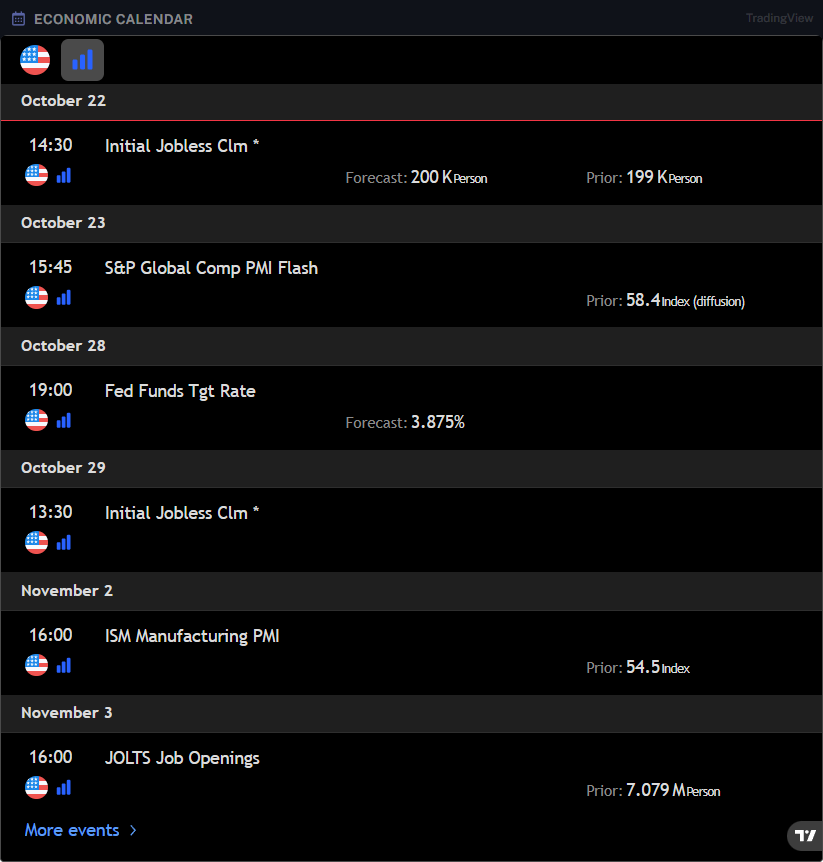
Where shown, Forecast is the expected reading and Prior is the previous reading. Check the event name and units when comparing them. Select More events to view additional releases.
An event time helps you place a release alongside changes in price and options analytics. The calendar alone does not establish why a price moved or predict its direction.
Compare markets over a selected period
In World Markets, choose an instrument from the tabs above the chart, then select the period you want to examine. The illustrated tabs include indices, ETFs, and individual stocks.
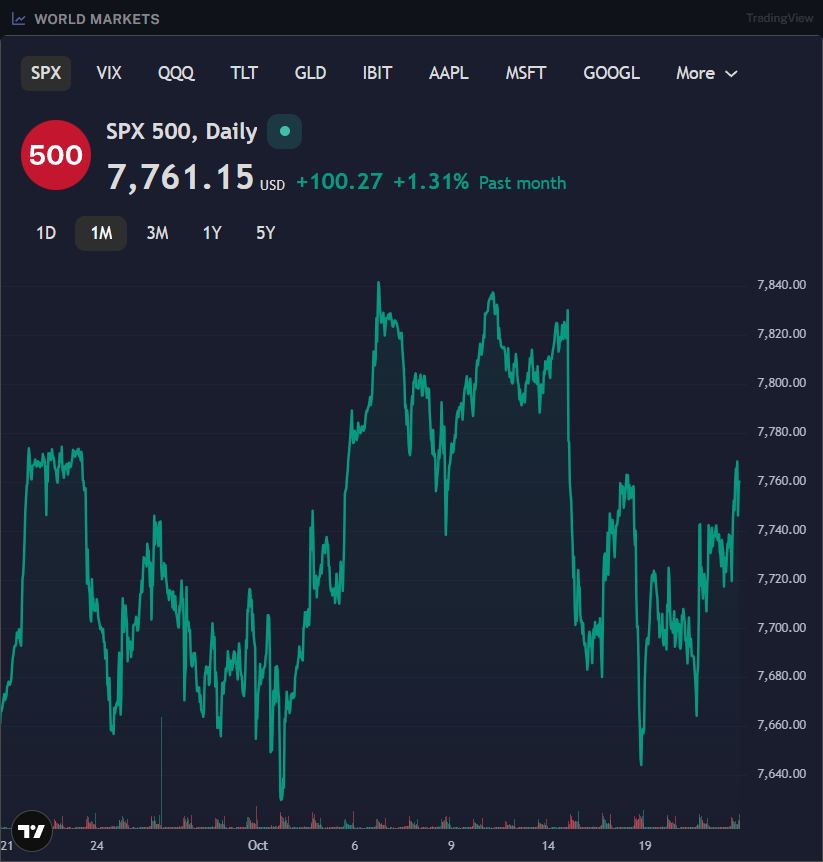
Read the period beside the price change before comparing instruments. In this example, Past month describes the displayed change; it is not the current session's return.
This TradingView chart provides a broader market view. For options-derived levels, exposure profiles, and expiration comparisons, use GEX Live Chart or GEX Matrix.
Read headlines with their publication times
Use Top Stories to review financial headlines alongside the calendar and market charts. Read the publication time as well as the headline, and check the full report for details.
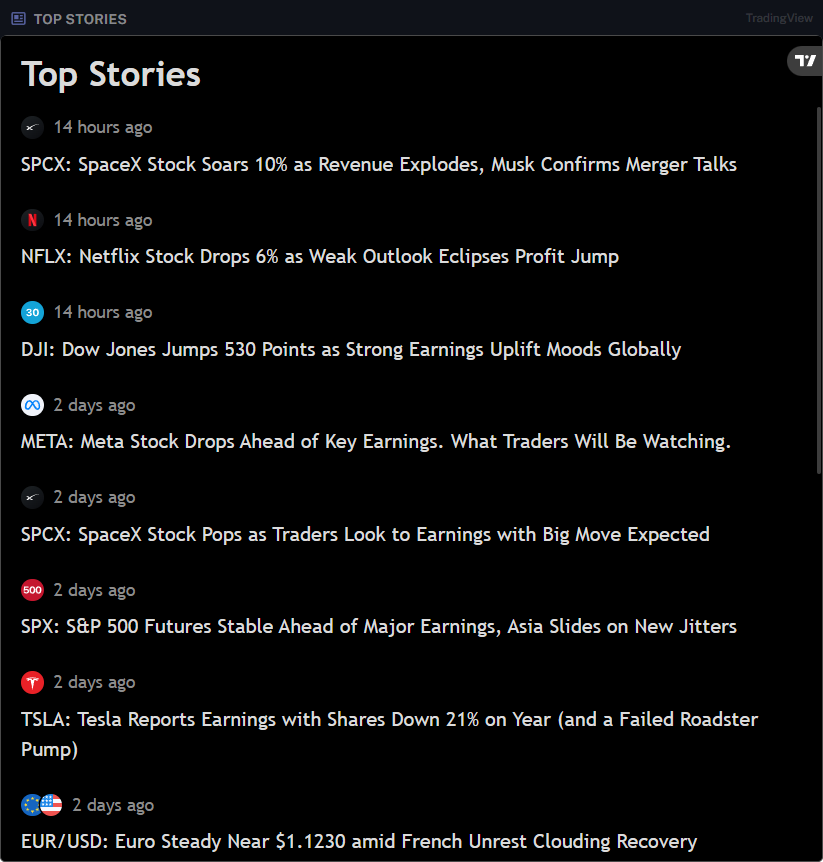
A headline can provide background for a market move, but it does not replace the underlying data or provide a trade recommendation.
Connect events with options analytics
Keep macroeconomic releases separate from company earnings. For company earnings, check the earnings information in Options Screener, then inspect the relevant expiration in GEX Live or GEX Matrix.
GEX Live and the Matrix highlight an earnings expiration with a purple pulse. Before-market earnings are assigned to that session; after-market earnings are assigned to the next session for expiration labeling.
Use the calendar and news to identify events worth reviewing, then compare the selected symbol's IVx, skew, and exposure across expirations. Keep the event timing and the selected expiration in view when interpreting the analytics.
TanukiTrade documentation. Levels are context, not a recommendation. tanukitrade.com